Save Powerpoint Template As Theme
p Hello everyone! Have you ever spent hours perfecting a PowerPoint template, only to find yourself recreating it from scratch for future presentations? There’s a much simpler and more efficient way to leverage your hard work: saving your PowerPoint template as a theme. This allows you to quickly apply your custom design elements, color schemes, fonts, and effects to any new presentation, saving you valuable time and ensuring brand consistency. Let’s dive into how to do it!
-
Saving a PowerPoint Template as a Theme: Step-by-Step Guide
PowerPoint themes are essentially pre-designed packages containing coordinated fonts, colors, and effects that you can apply to your presentations. Unlike a template, which provides specific content layouts, a theme provides a flexible framework for your content. By saving your custom PowerPoint template as a theme, you can easily apply its visual style to various presentations without being restricted by specific pre-set layouts.
Step 1: Customize Your Template
First, you need to have your PowerPoint template ready. This means you’ve already defined the following elements:
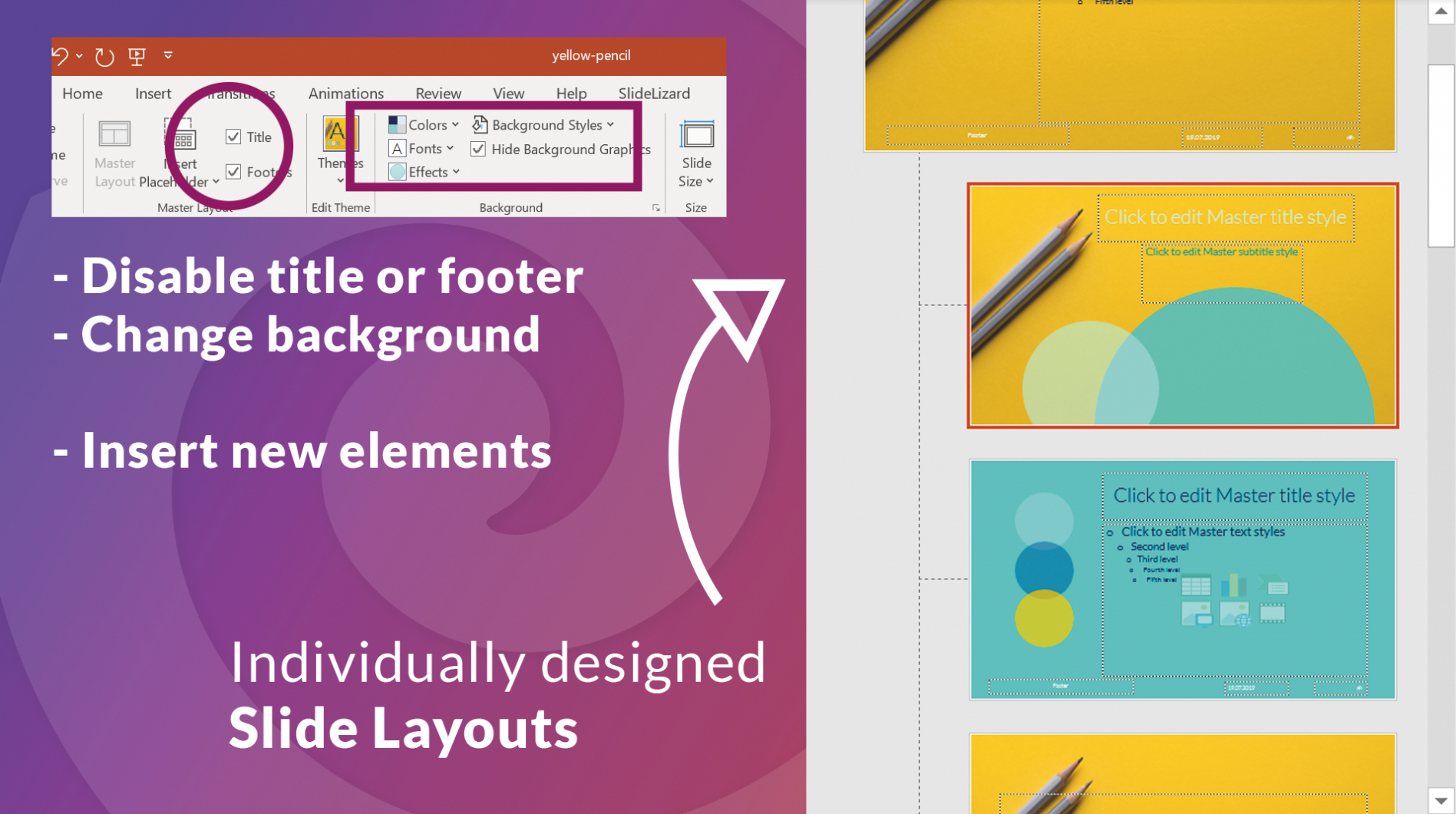
- **Master Slides:** Modify the slide master to define your overall background, placeholders, and graphic elements. This is where you set the foundation for your design. Access the slide master by going to the “View” tab and clicking “Slide Master.”
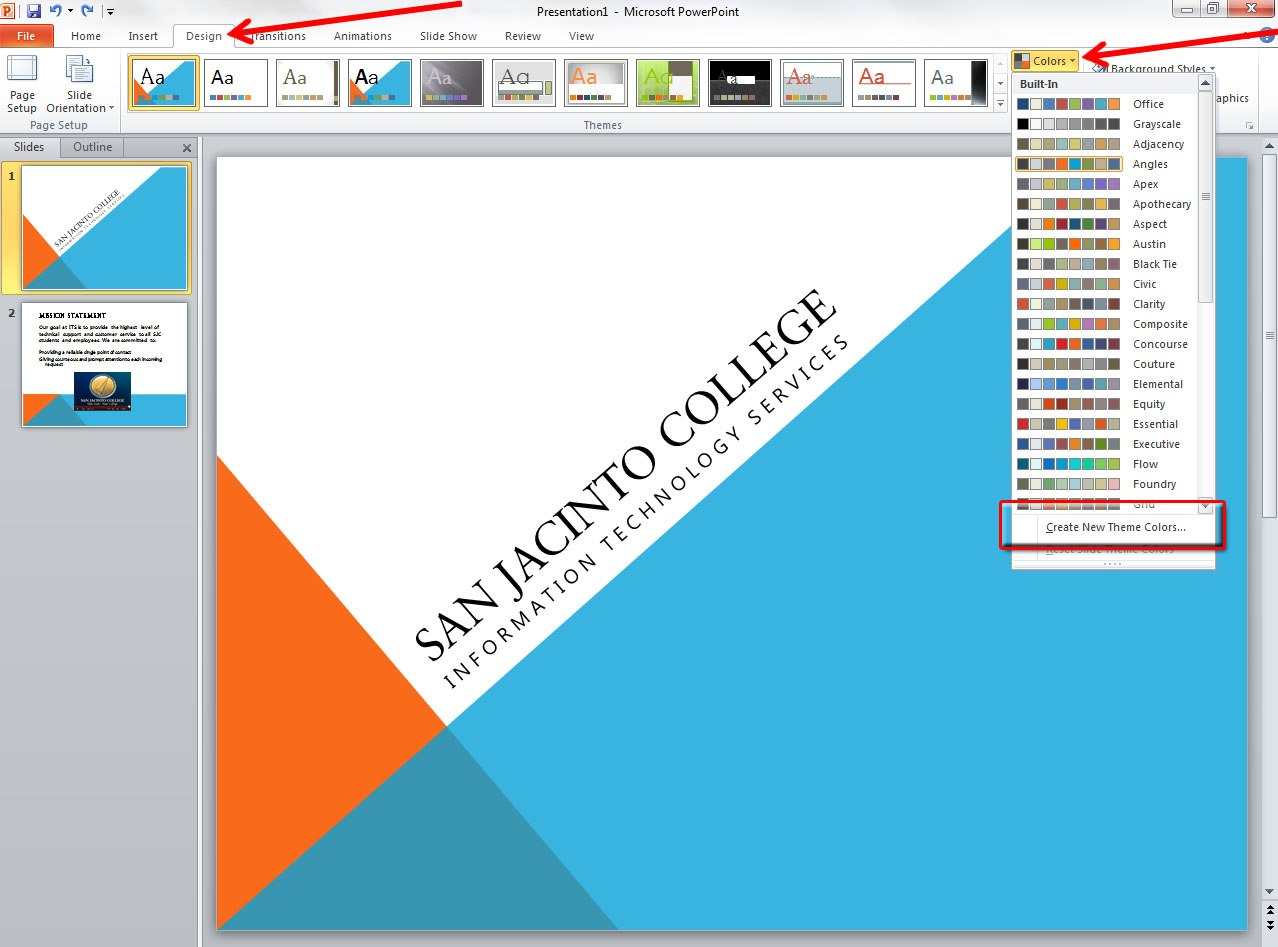
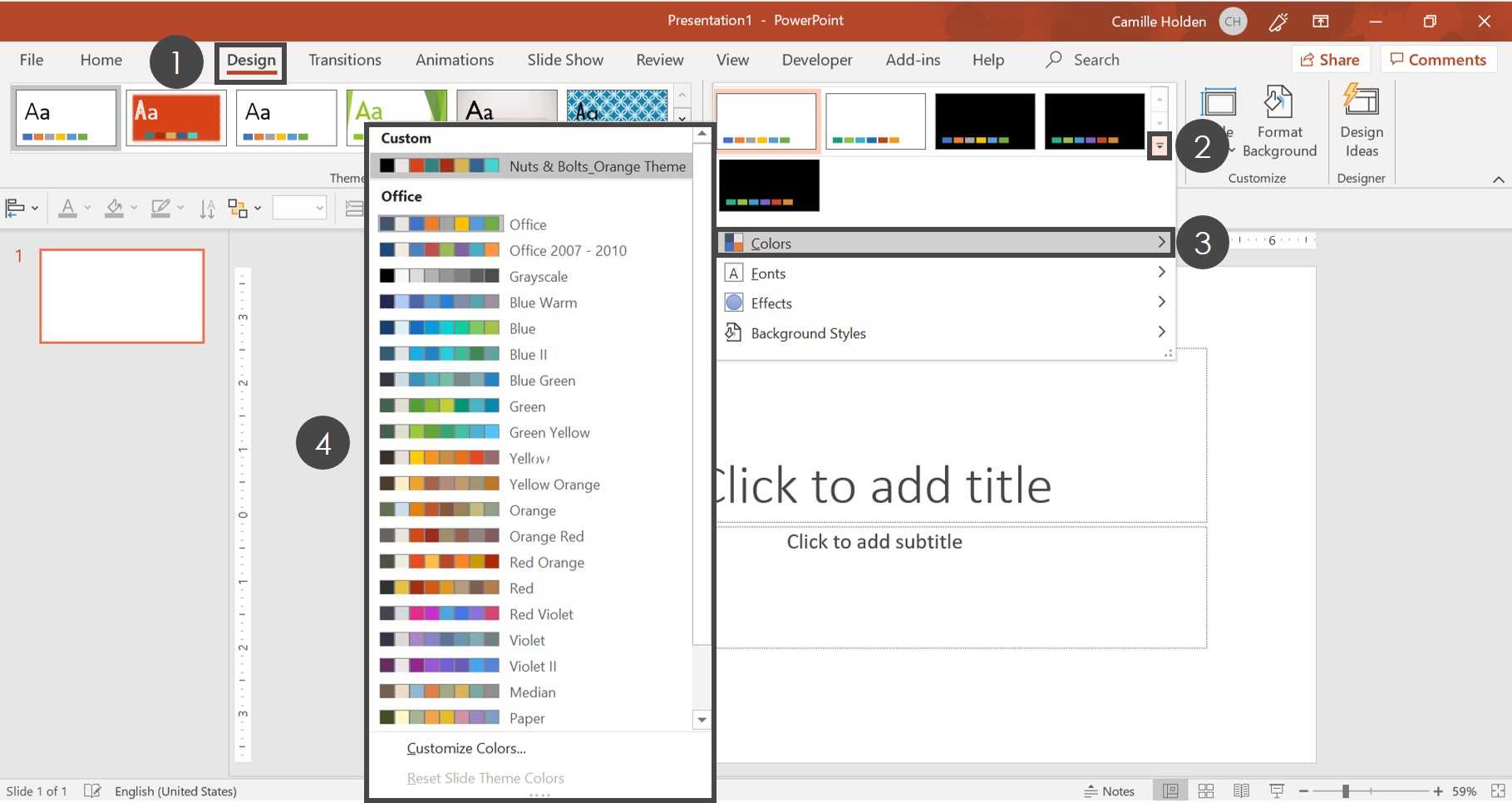
- **Color Scheme:** Choose a color palette that aligns with your branding. Navigate to “Design” > “Variants” > “Colors” > “Customize Colors” to define your accent colors, hyperlinks, and background colors.
- **Fonts:** Select fonts that are legible and consistent with your brand. Go to “Design” > “Variants” > “Fonts” > “Customize Fonts” to define your heading and body fonts.
- **Effects:** Choose subtle effects, like shadows or bevels, that enhance your visual style without being distracting. This can be found under “Design” > “Variants” > “Effects.”
- **Background Styles:** Experiment with different background styles and textures to create a unique look. This can be accessed under “Design” > “Background Styles.”
Remember to close the Slide Master view when you are finished editing it to return to the normal presentation view.
Step 2: Save as a PowerPoint Theme
Once your template is perfectly customized, you’re ready to save it as a theme. Follow these steps:
- Click on the “Design” tab.
- Look for the “Variants” group on the right side of the ribbon.
- Click the dropdown arrow in the “Variants” group (it might say “More”).
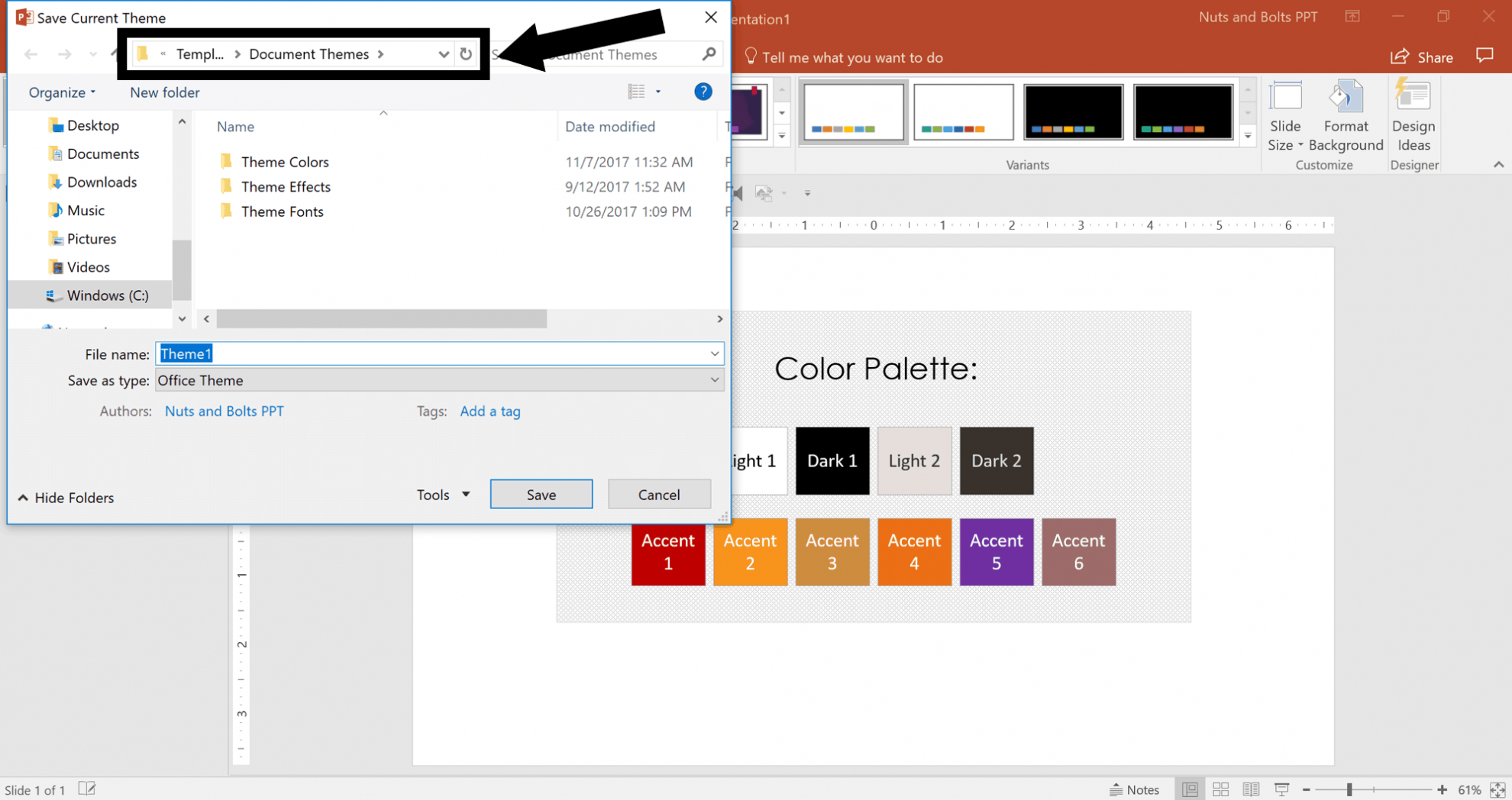
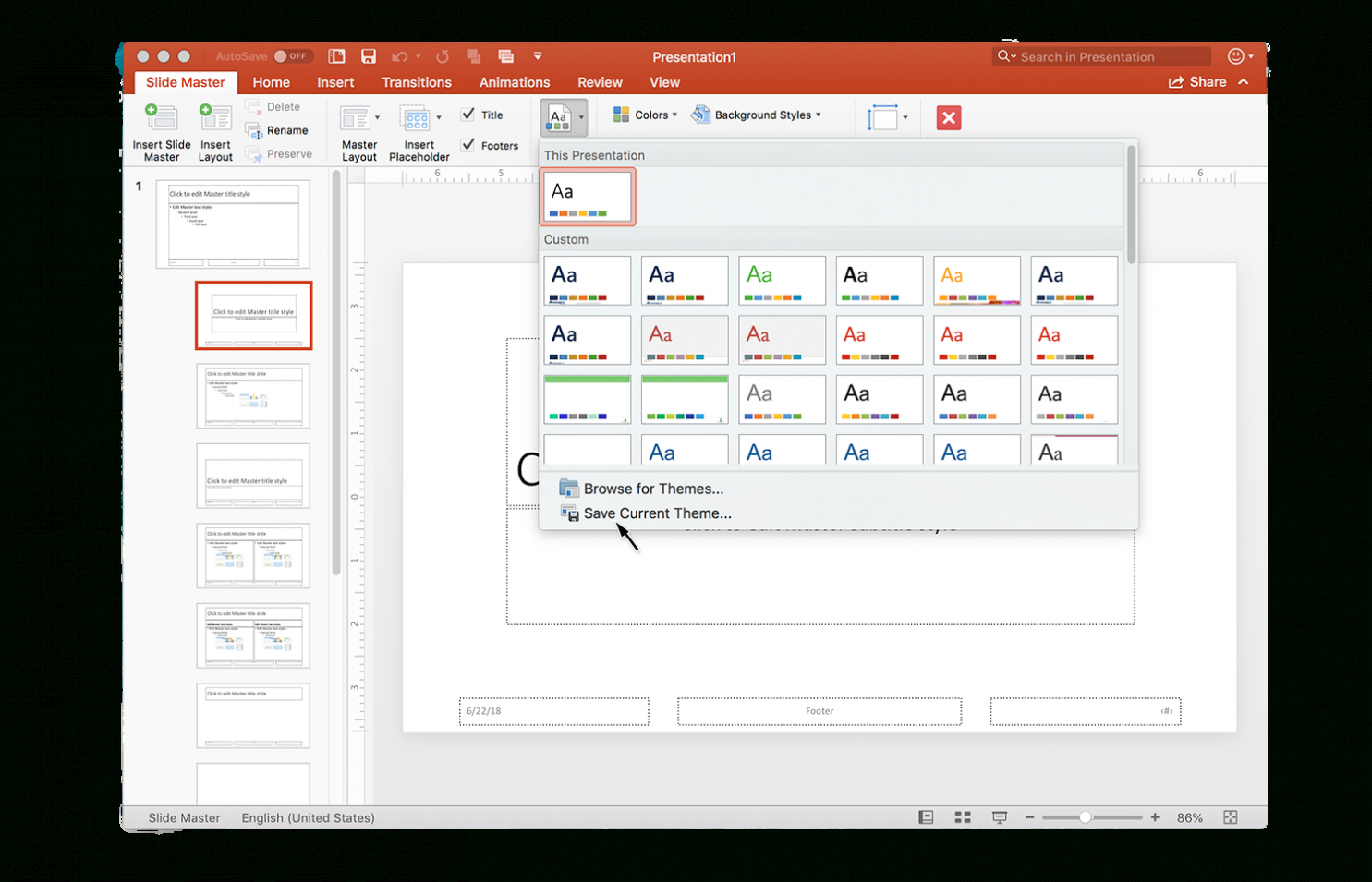
- Select “Save Current Theme…” from the dropdown menu.
- In the “Save Theme” dialog box, give your theme a descriptive name. Choose a name that makes it easy to identify later, such as “CompanyBrandTheme” or “MarketingPresentationTheme.”
- The theme will be saved in the default theme location (usually the “Document Themes” folder). It’s recommended to leave this location as the default for easy access.
- Click “Save.”
Step 3: Applying Your Saved Theme
Now that you’ve saved your template as a theme, applying it to new presentations is a breeze:
- Open a new or existing PowerPoint presentation.
- Go to the “Design” tab.
- In the “Themes” group, click the dropdown arrow to reveal the “More” options.
- Under “Custom,” you’ll find your saved theme. Click on it to apply it to your presentation.
Your entire presentation will now instantly adopt the color scheme, fonts, effects, and background styles defined in your saved theme. You can now focus on adding your content without worrying about redesigning the visual aspects of your slides.
Benefits of Using Themes
- **Time Savings:** Avoid recreating your design from scratch every time you create a new presentation.
- **Consistency:** Maintain a consistent brand identity across all your presentations.
- **Flexibility:** Apply the theme to existing presentations, instantly updating their visual style.
- **Efficiency:** Focus on content creation rather than design details.
- **Collaboration:** Share themes with colleagues to ensure everyone is using the same branding guidelines.
Important Considerations
- **Updating Themes:** If you need to update your theme, simply open a presentation that uses the theme, make the changes, and then save the theme again using the same name. PowerPoint will prompt you to replace the existing theme.
- **Sharing Themes:** To share your theme with others, simply locate the theme file (with a `.thmx` extension) in the “Document Themes” folder and send it to your colleagues. They can then place the file in their own “Document Themes” folder.
- **Content vs. Theme:** Remember that a theme only applies the visual aspects of your presentation. It doesn’t carry over specific content layouts or text. You will still need to add your content separately.
p By mastering the art of saving PowerPoint templates as themes, you can streamline your presentation creation process, maintain brand consistency, and ultimately, create more impactful and visually appealing presentations. So go ahead, create your own custom theme and experience the difference!
If you are looking for 10+ Best Creative Powerpoint Templates For Marketing pertaining to Save you’ve visit to the right place. We have 15 Images about 10+ Best Creative Powerpoint Templates For Marketing pertaining to Save like Save Powerpoint Template as theme Save Powerpoint Template as theme, How To Create A Powerpoint Template (Step-By-Step) in Save Powerpoint and also 10+ Best Creative Powerpoint Templates For Marketing pertaining to Save. Here you go:
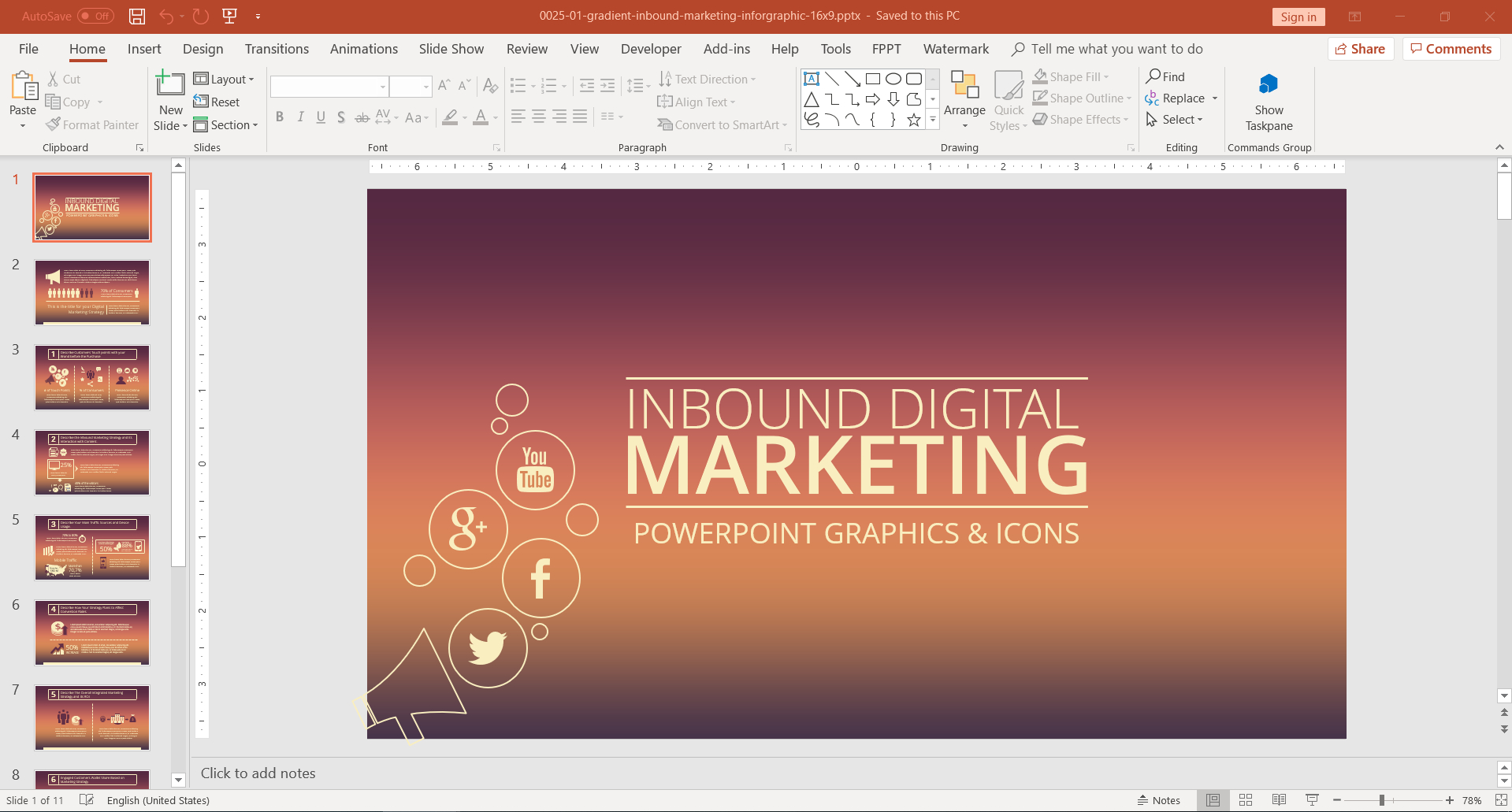
10+ Best Creative Powerpoint Templates For Marketing Pertaining To Save
sample.gelorailmu.com
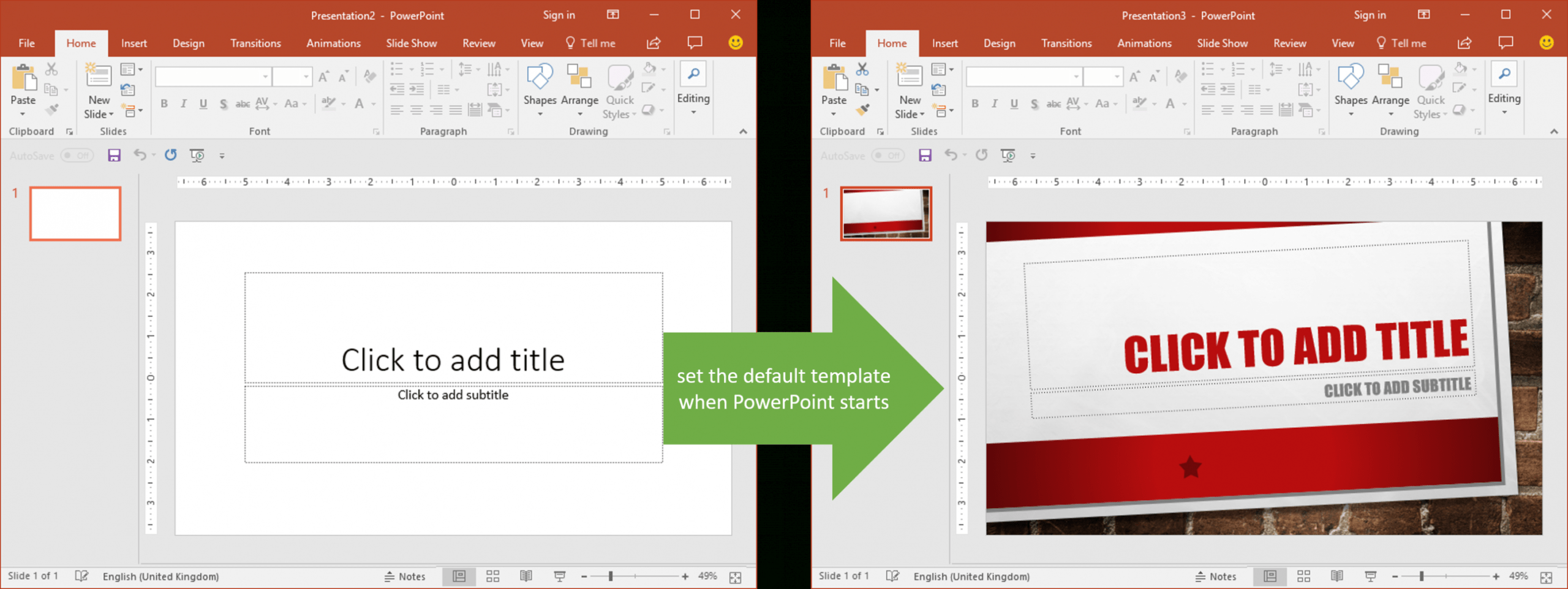
Save Powerpoint Template As Theme – Creative Inspirational Template
habib.gelorailmu.com
Applying And Modifying Themes In Powerpoint Information Inside Save
vancecountyfair.com
Save Powerpoint Template As Theme – Sarseh.com

sarseh.com
Save Powerpoint Template As Theme – Sarseh.com

sarseh.com
Save Powerpoint Template As Theme – Creative Inspirational Template
habib.gelorailmu.com
Save Powerpoint Template As Theme – Creative Inspirational Template
habib.gelorailmu.com
Save Powerpoint Template As Theme – Sarseh.com

sarseh.com
Save Powerpoint Template As Theme – Creative Inspirational Template
habib.gelorailmu.com
Save Powerpoint Template As Theme – Sarseh.com
sarseh.com
Save Powerpoint Template As Theme – Toptemplate.my.id

www.toptemplate.my.id
How To Create A Powerpoint Template (Step-By-Step) In Save Powerpoint
sample.gelorailmu.com
Save Powerpoint Template As Theme Save Powerpoint Template As Theme

williamson-ga.us
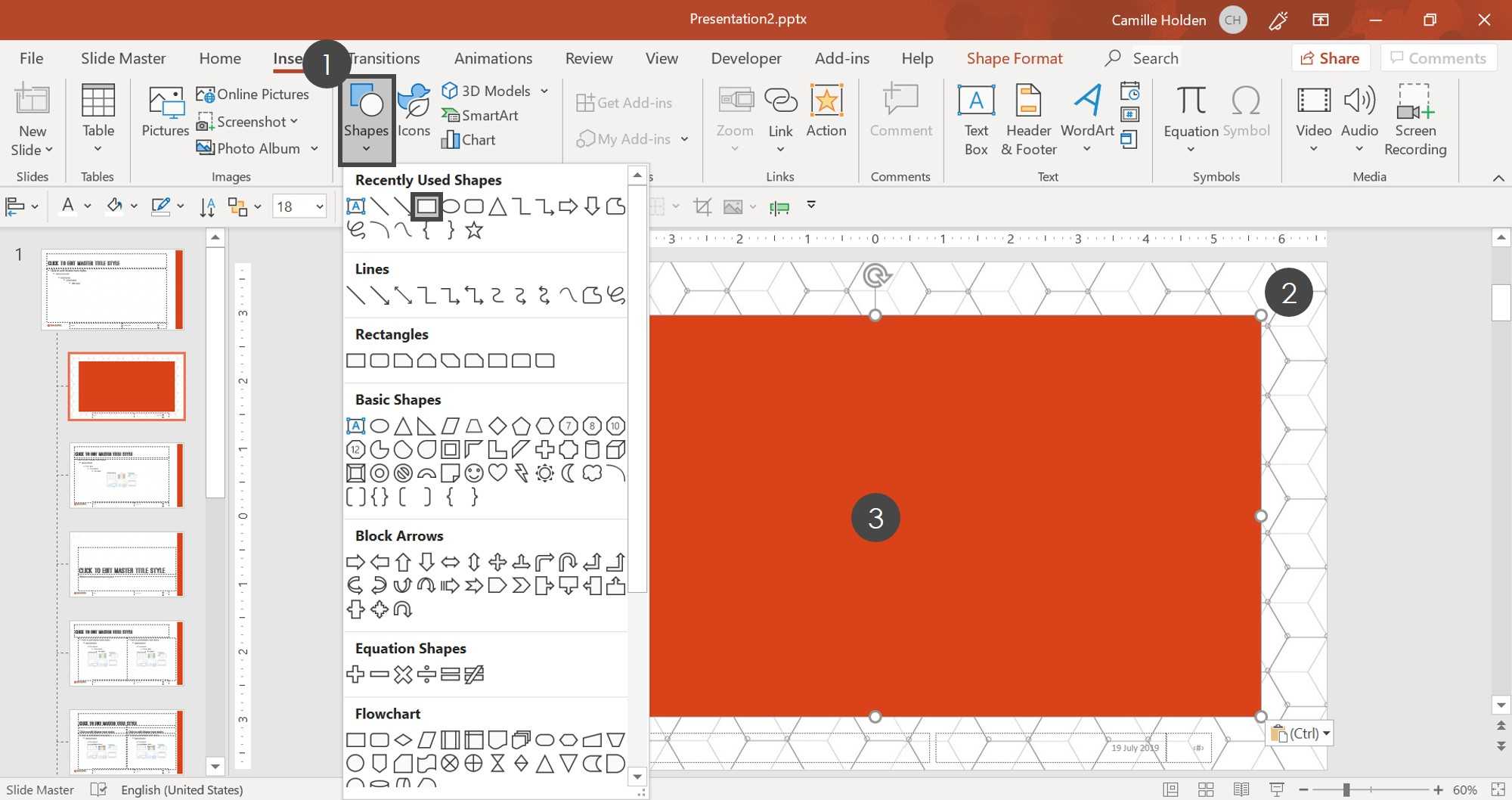
How To Create A Powerpoint Template (Step-By-Step) Inside Save
www.xfanzexpo.com
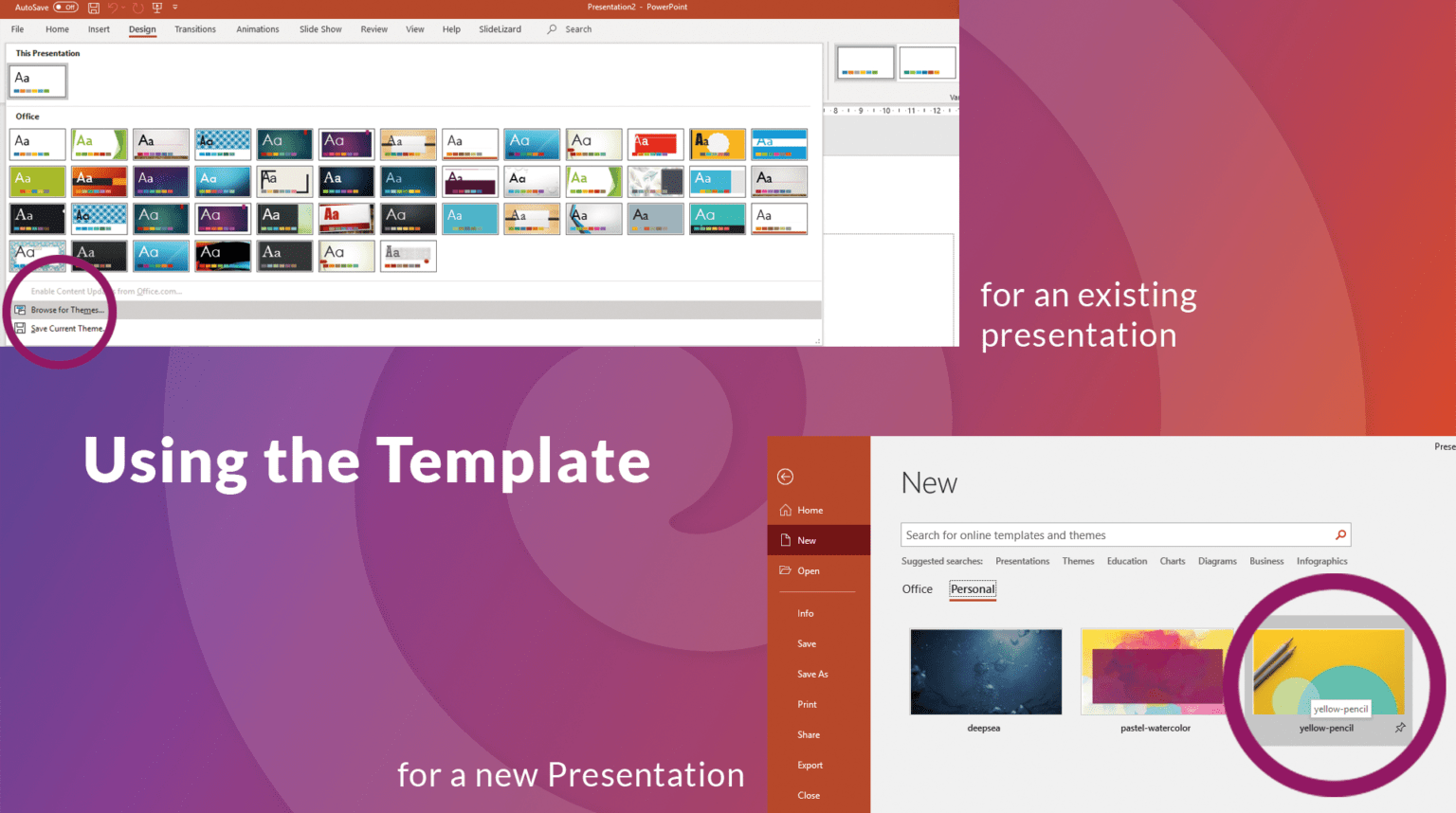
How To Create Your Own Powerpoint Template (2020) | Slidelizard Within
dash.pejuang.net
10+ best creative powerpoint templates for marketing pertaining to save. How to create a powerpoint template (step-by-step) inside save. Applying and modifying themes in powerpoint information inside save