Ms Word Business Card Template
Creating a professional and memorable business card is crucial for making a positive first impression. While you might be tempted to hire a graphic designer, sometimes a simple and effective solution is all you need, especially when you’re just starting out or need a quick and affordable option. Microsoft Word offers a range of business card templates that can be customized to reflect your brand and provide potential clients and contacts with your essential information. This post explores the benefits of using MS Word business card templates, how to find them, and tips for making the most of these readily available resources.
Why Use Microsoft Word Business Card Templates?
- Cost-Effective: Unlike hiring a designer or using specialized software, MS Word is often already installed on your computer, making it a budget-friendly solution. The templates themselves are generally free to use.
- Easy to Use: Word’s familiar interface makes it easy for anyone to navigate and customize the templates. No advanced design skills are required. You can quickly change text, fonts, colors, and add your logo.
- Quick Turnaround: Need business cards urgently? Word templates allow you to create and print your cards within minutes.
- Accessibility: MS Word is widely accessible, ensuring compatibility across different devices and operating systems.
- Customization: While templates provide a starting point, they are highly customizable. You can adjust almost every element to align with your brand identity.
- Print Options: You can print your cards at home using perforated business card paper or send the file to a professional printing service.
Finding the Right MS Word Business Card Template
Microsoft Word provides several ways to access business card templates:
Method 1: Through the MS Word Application
- Open Microsoft Word: Launch the MS Word application on your computer.
- Search for Templates: In the “New” screen, look for a search bar or a section dedicated to templates. Type “business card” or a related keyword like “business card template,” “business card design,” or “visiting card.”
- Browse and Select: A variety of templates will appear. Scroll through the options and select the one that best suits your needs and style. Consider factors like layout, color scheme, and overall design.
- Download the Template: Click on the desired template to download it. It will open as a new Word document, ready for customization.
Method 2: Online Microsoft Template Gallery
- Access the Website: Open your web browser and search for “Microsoft Word Templates” or “Microsoft Office Templates.”
- Navigate to Business Card Templates: On the Microsoft website, navigate to the section dedicated to business card templates. You may find categories like “Industry,” “Style,” or “Color.”
- Filter and Search: Use the available filters and search options to narrow down your choices based on your specific requirements.
- Download the Template: Once you find a suitable template, download it. The downloaded file will typically be a .docx file that opens directly in Microsoft Word.
Tips for Customizing Your MS Word Business Card Template
Once you’ve selected a template, it’s time to personalize it with your information and brand elements. Here are some key areas to focus on:
1. Content and Information
- Name and Title: Clearly display your name and professional title. Choose a font that is legible and reflects your brand’s personality.
- Contact Information: Include your phone number, email address, and website URL. Double-check for accuracy.
- Company Information: If applicable, add your company name, logo, and address. Ensure the logo is high resolution for optimal printing.
- Social Media Handles: Consider adding relevant social media handles (e.g., LinkedIn, Twitter) if they are crucial for your business.
- Concise Messaging: Avoid overcrowding the card with too much text. Keep the information concise and focused.
2. Design and Aesthetics
- Font Choice: Select fonts that are easy to read and consistent with your brand. Use a maximum of two or three different fonts to maintain a clean and professional look.
- Color Palette: Choose colors that align with your brand identity. Consider the psychology of colors and how they might influence perception.
- Logo Placement: Position your logo strategically on the card. Ensure it is prominent but doesn’t overshadow the other information.
- White Space: Utilize white space effectively to create a clean and uncluttered design. Avoid filling every inch of the card with text or graphics.
- Alignment and Spacing: Pay attention to alignment and spacing to create a visually balanced design.
3. Printing Considerations
- Paper Quality: Use high-quality business card paper for a professional feel. Consider options like matte, glossy, or textured paper.
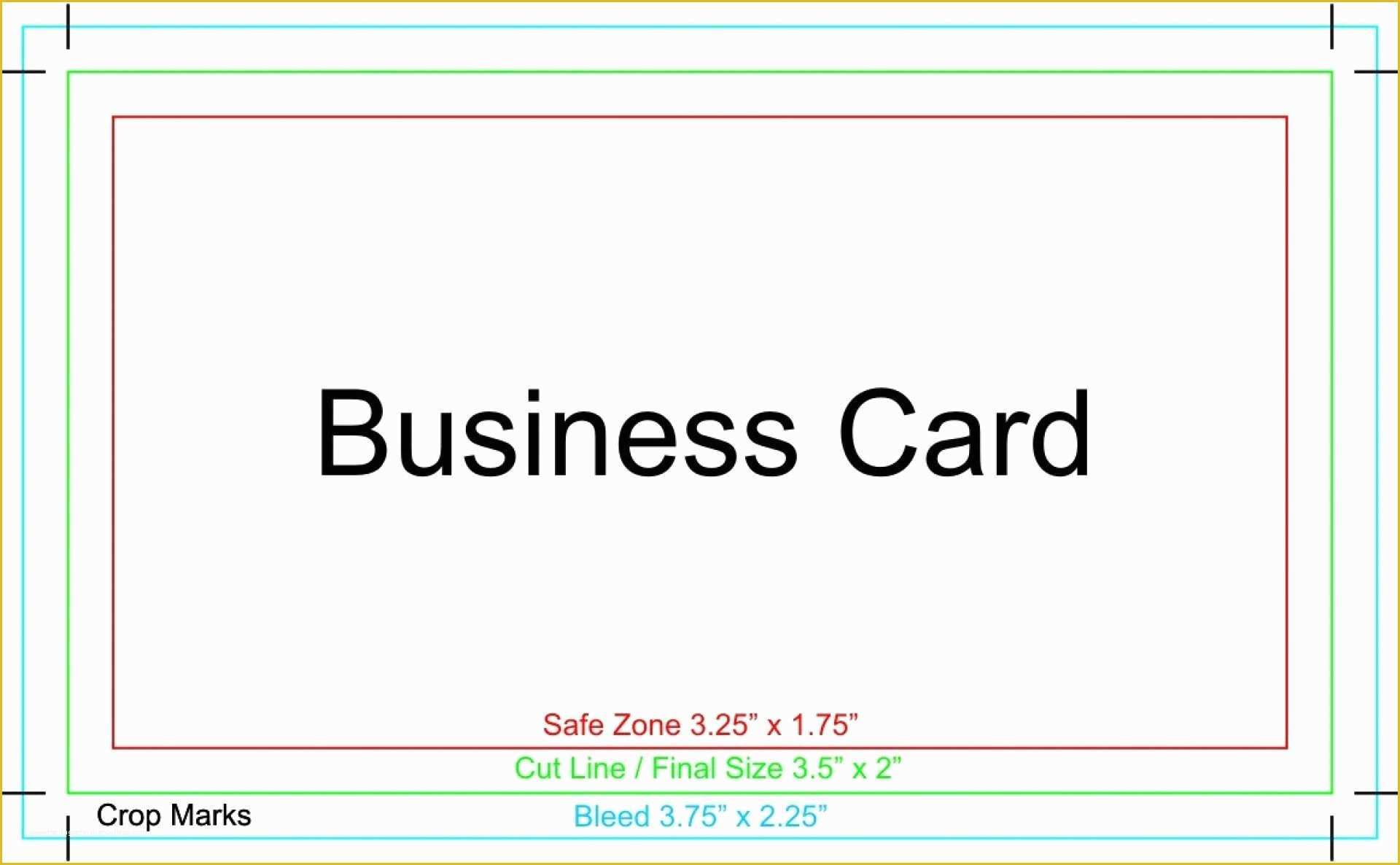
- Bleed Area: If your design includes elements that extend to the edge of the card, ensure you extend them slightly beyond the trim line to create a bleed area. This prevents white borders from appearing after printing.
- Proofread Carefully: Before printing, meticulously proofread all the text for any errors.
- Test Print: Print a test sheet on regular paper to check the layout, color accuracy, and overall appearance before printing on business card stock.
- Printing Options: Decide whether you will print the cards at home using perforated paper or send them to a professional printing service. Professional printing often provides higher quality results and more finishing options.
By following these tips and taking the time to customize your chosen MS Word business card template, you can create a professional and effective networking tool that represents your brand effectively without breaking the bank.
If you are looking for Free Blank Business Card Template Word – Mightyprintingdeals.com you’ve came to the right web. We have 15 Pictures about Free Blank Business Card Template Word – Mightyprintingdeals.com like Business Card Word Template in Word, PDF – Download | Template.net, 019 Blank Business Card Template Microsoft Word Free in Blank Business and also 019 Blank Business Card Template Microsoft Word Free in Blank Business. Here it is:
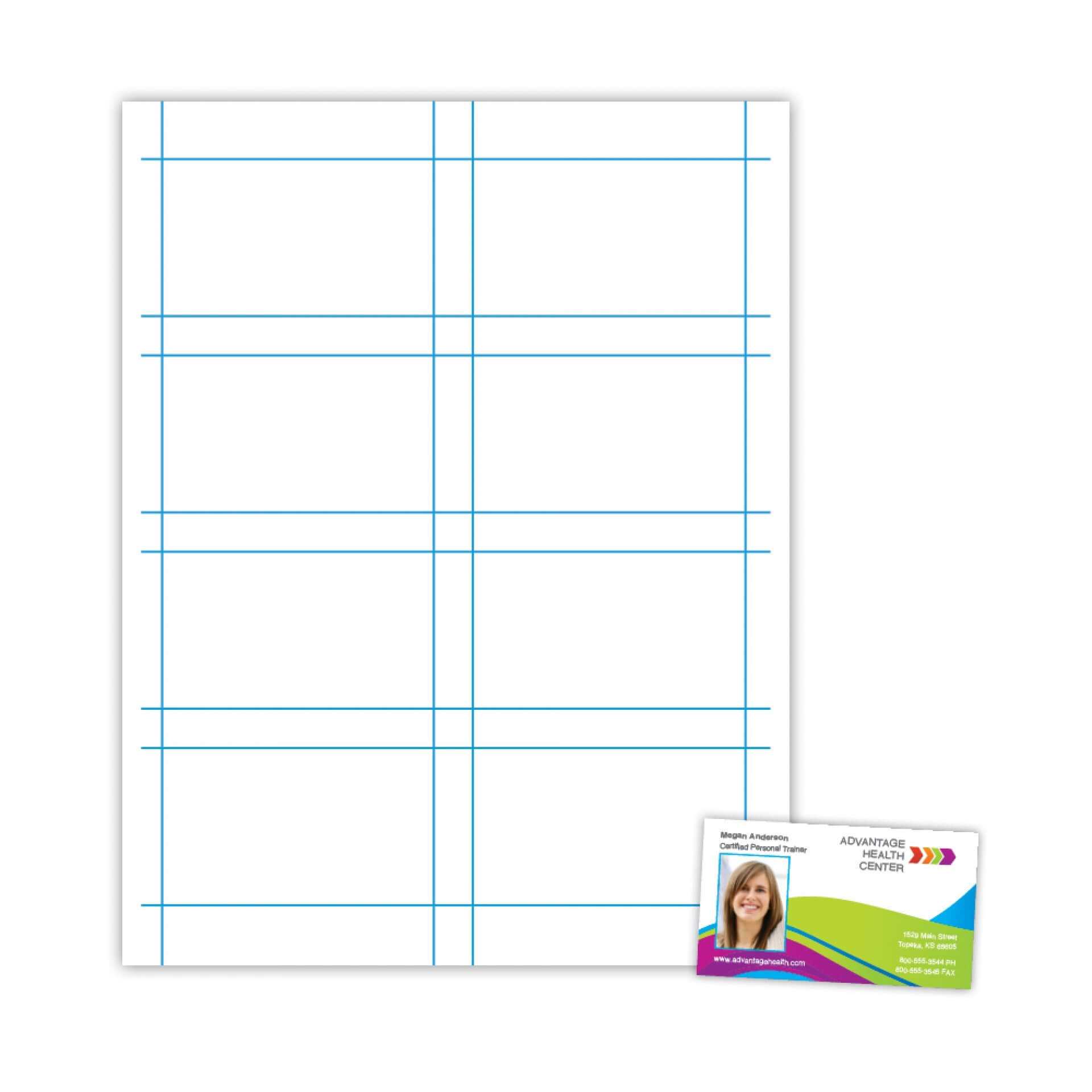
Free Blank Business Card Template Word – Mightyprintingdeals.com
www.mightyprintingdeals.com
Business Card Template Free Download Word – Posarocks
posarocks.weebly.com
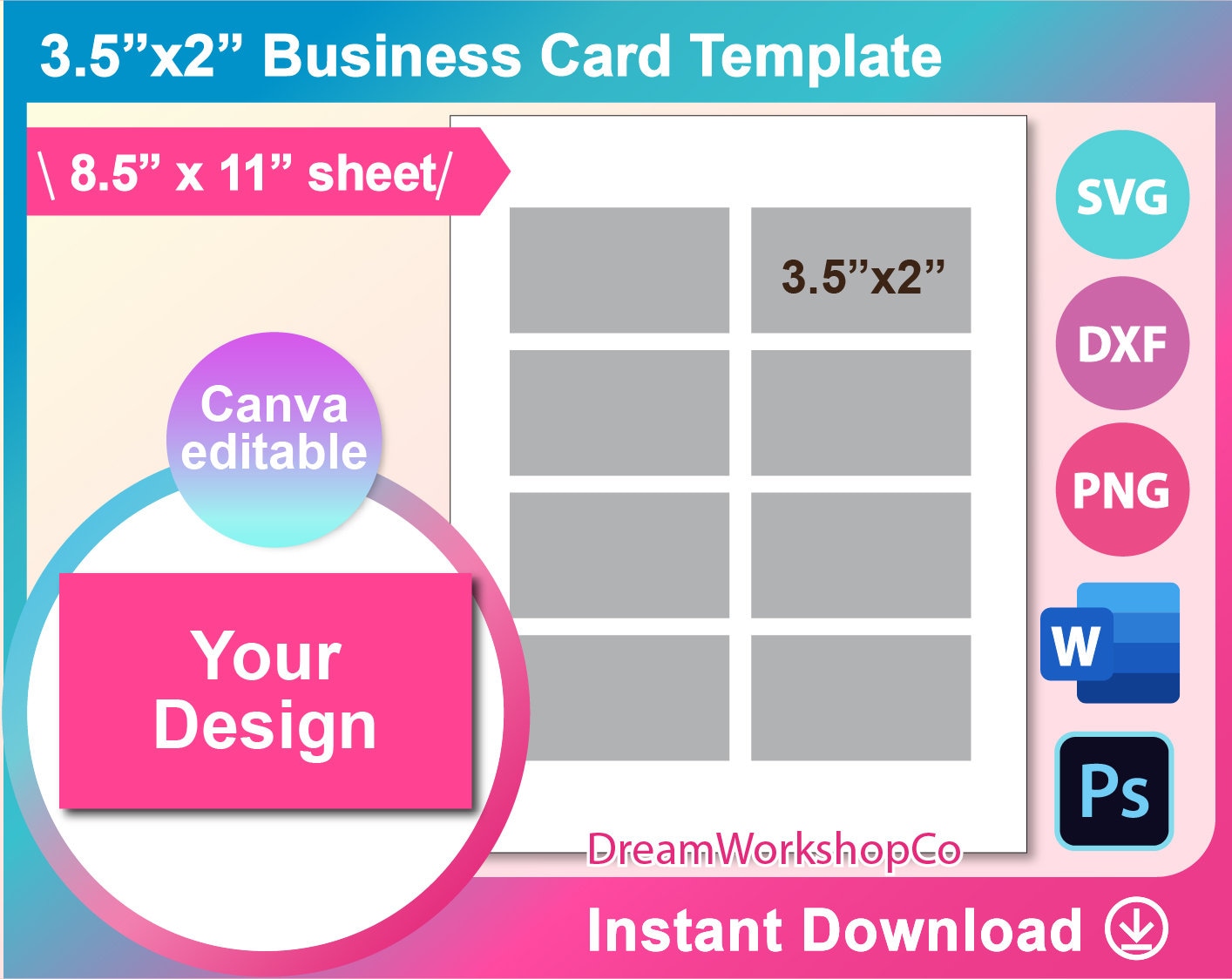
Ms Word Business Card Template
animalia-life.club
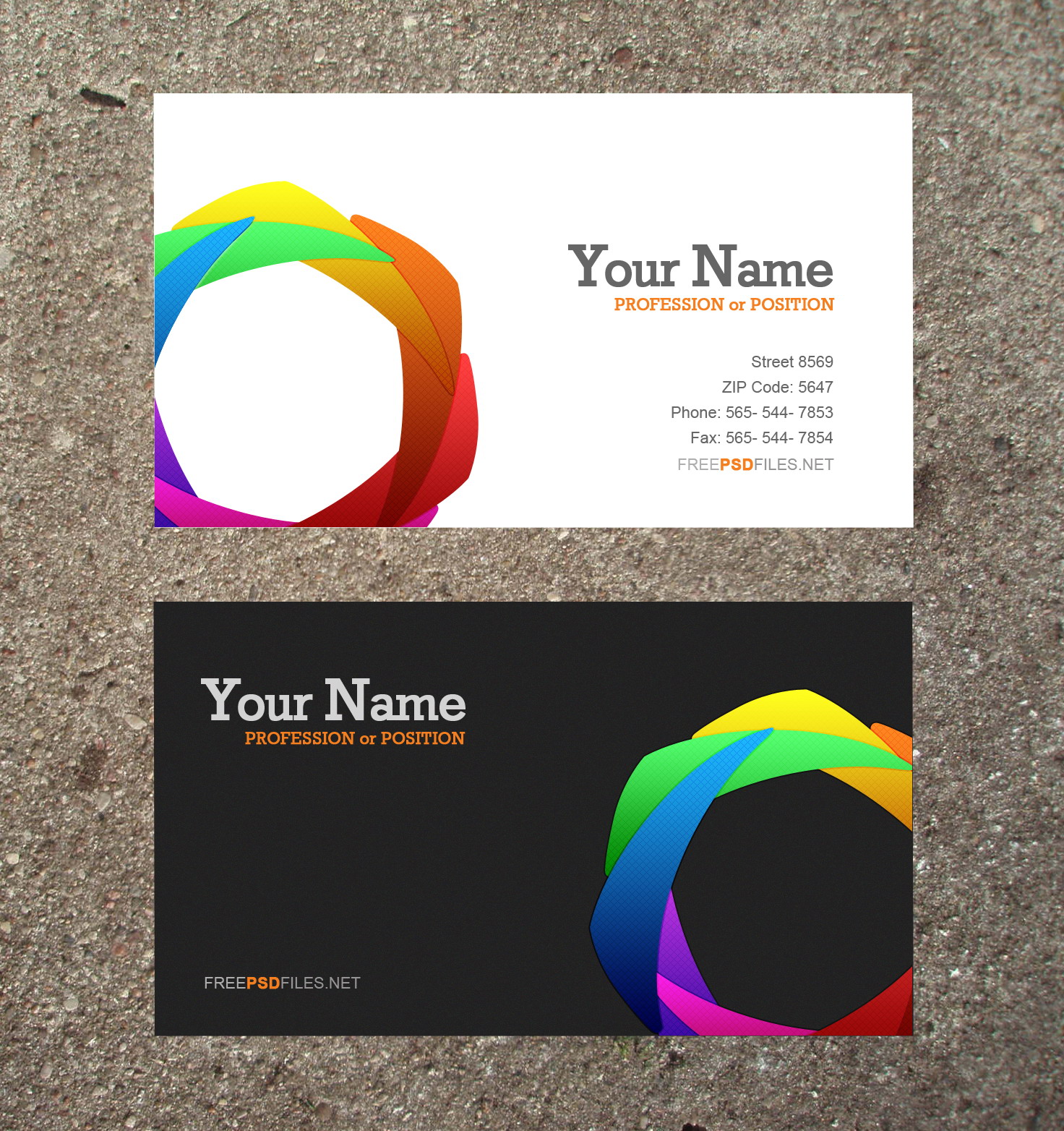
Business Cards Templates Microsoft Word – Cardtemplate.my.id
www.cardtemplate.my.id
Microsoft Word Business Card Template Free Of 16 Visiting Card Design
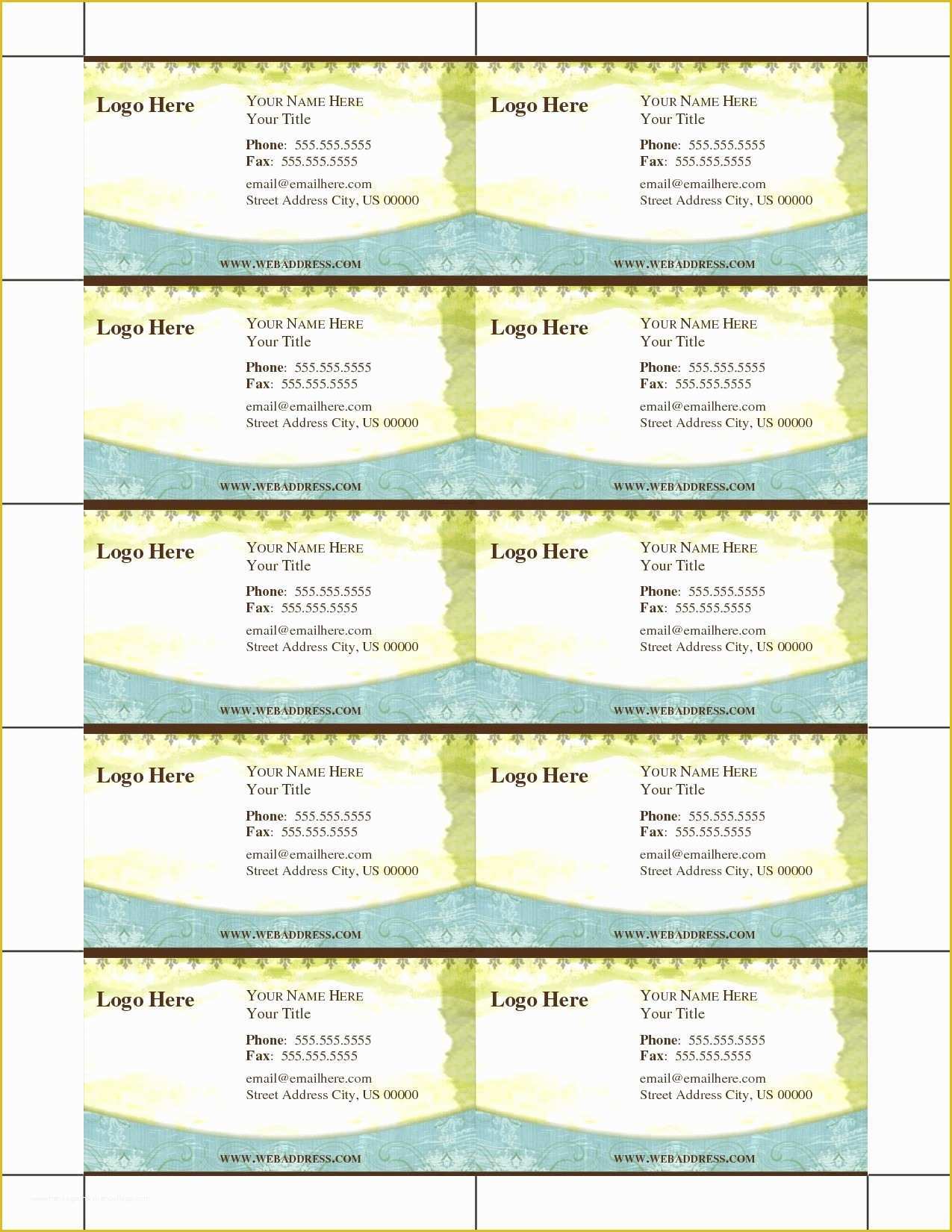
www.heritagechristiancollege.com
Microsoft Word Business Card Template Free Of 16 Visiting Card Design
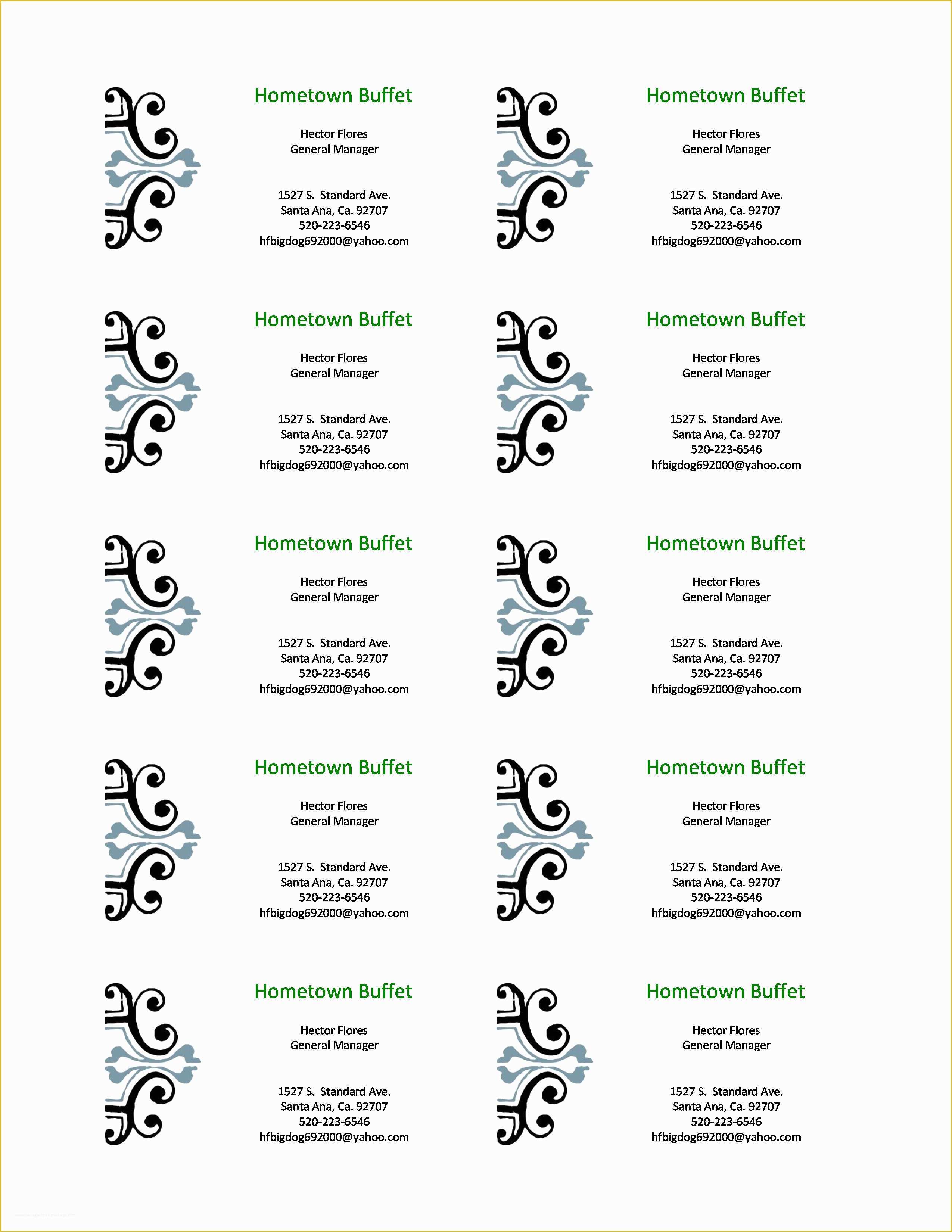
www.heritagechristiancollege.com
Microsoft Word Business Card Template
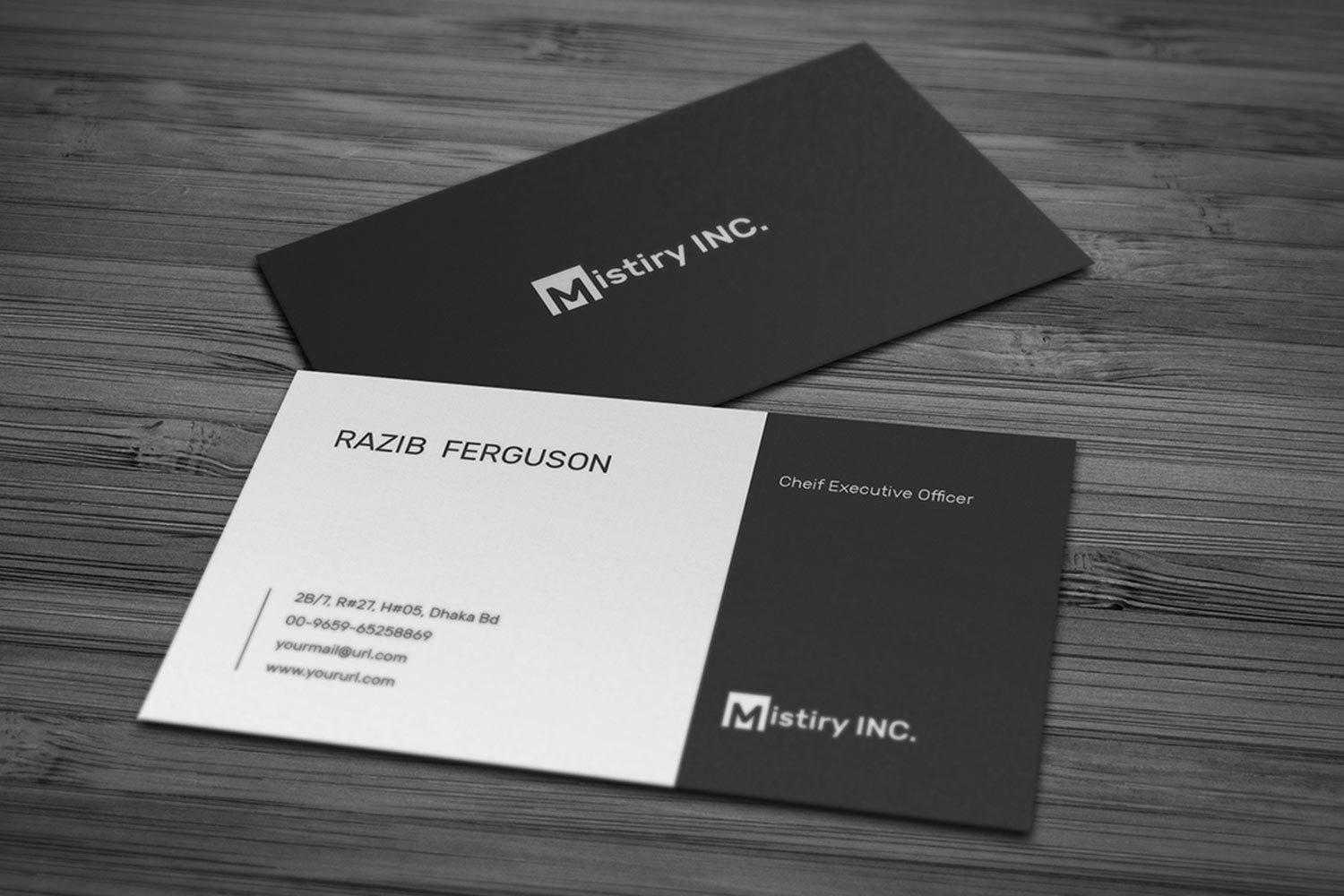
uidoor.com
Microsoft Word Free Business Card Template – Tenmens

tenmens.weebly.com
Business Card Template Word Free Download Of Business Card Templates

www.heritagechristiancollege.com
Word 23 Business Card Template – PARAHYENA
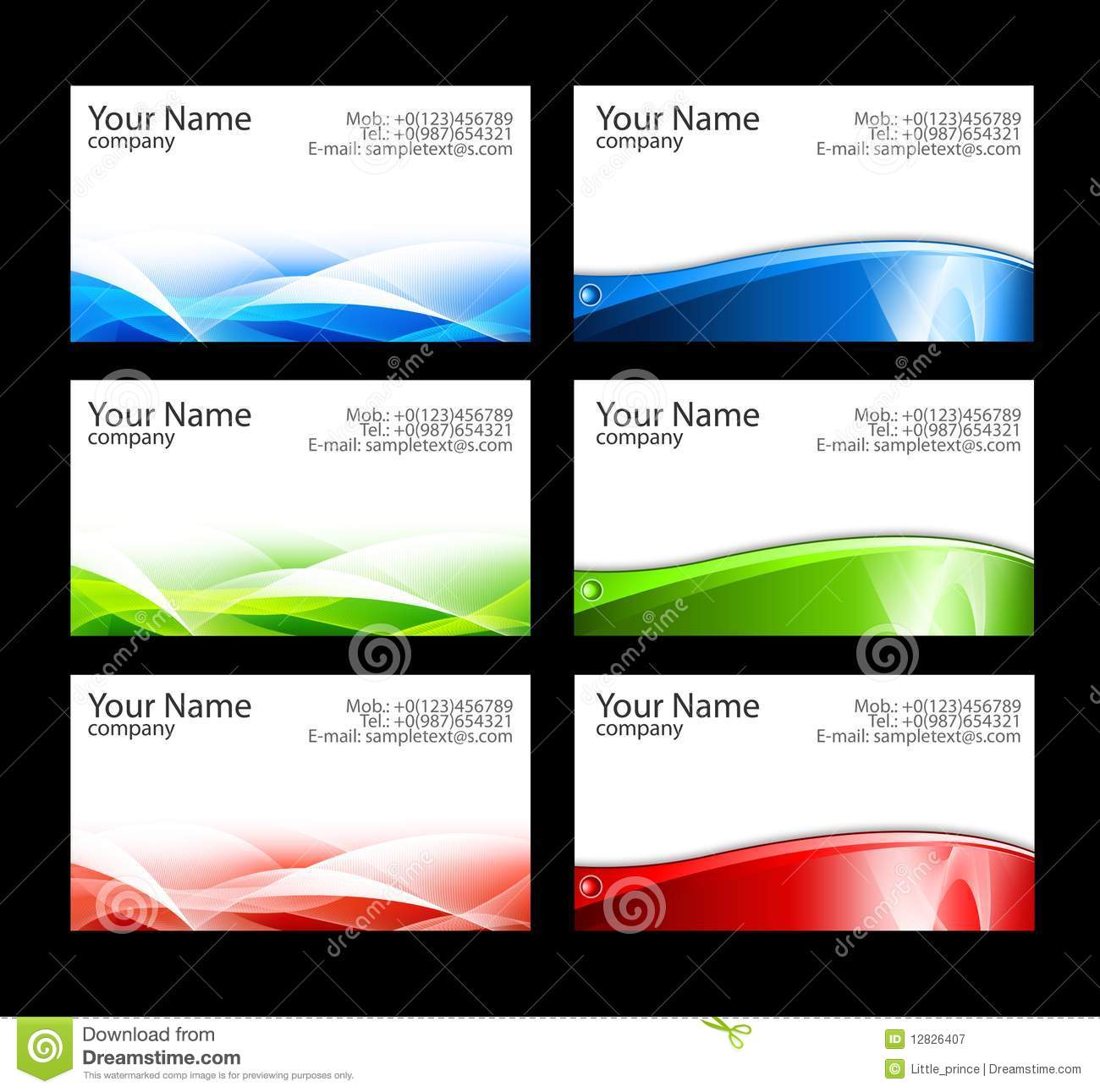
www.parahyena.com
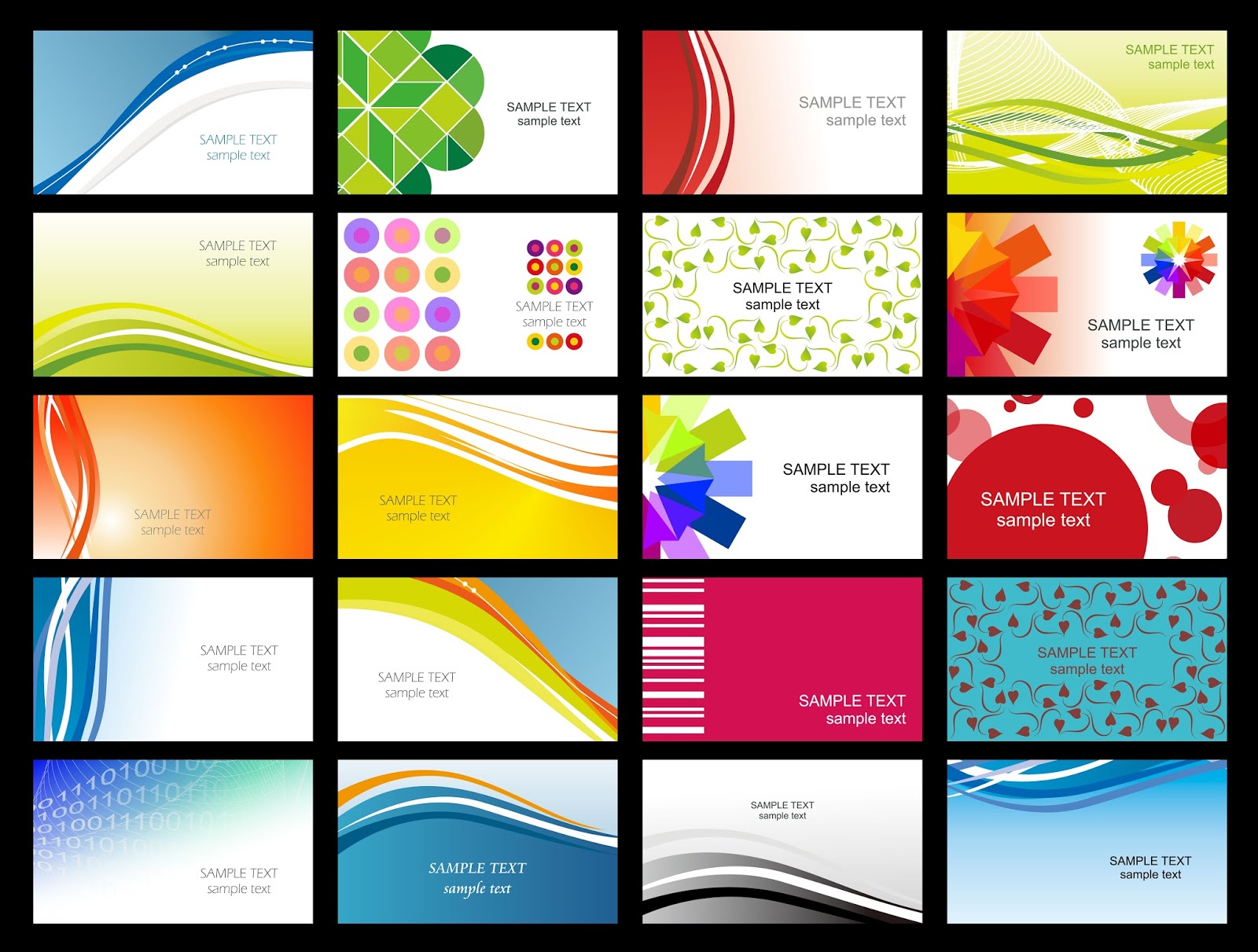
Free Blank Business Card Template Word – Mightyprintingdeals.com
www.mightyprintingdeals.com
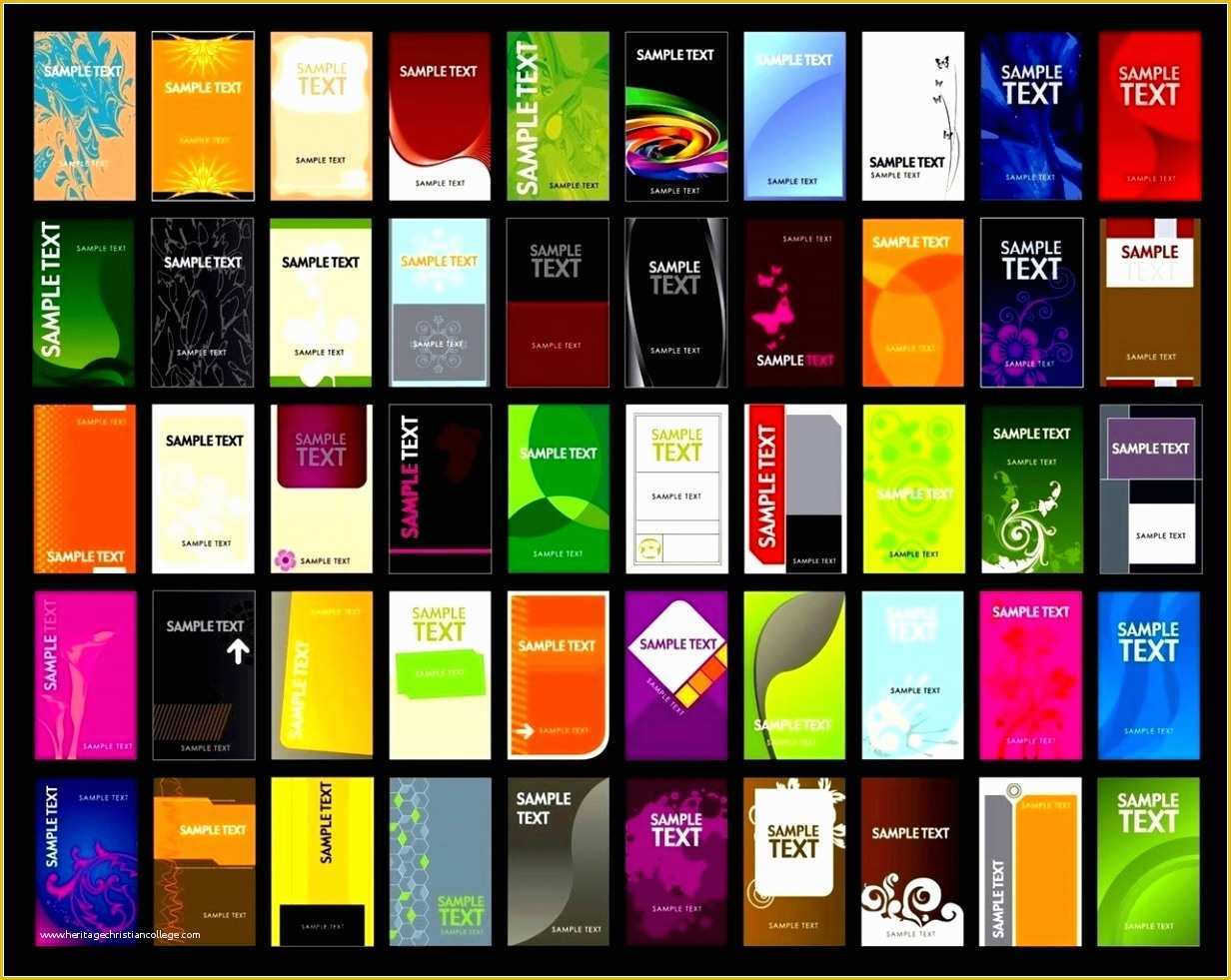
Business Card Template Word Free Download Of Free Business Cards
www.heritagechristiancollege.com
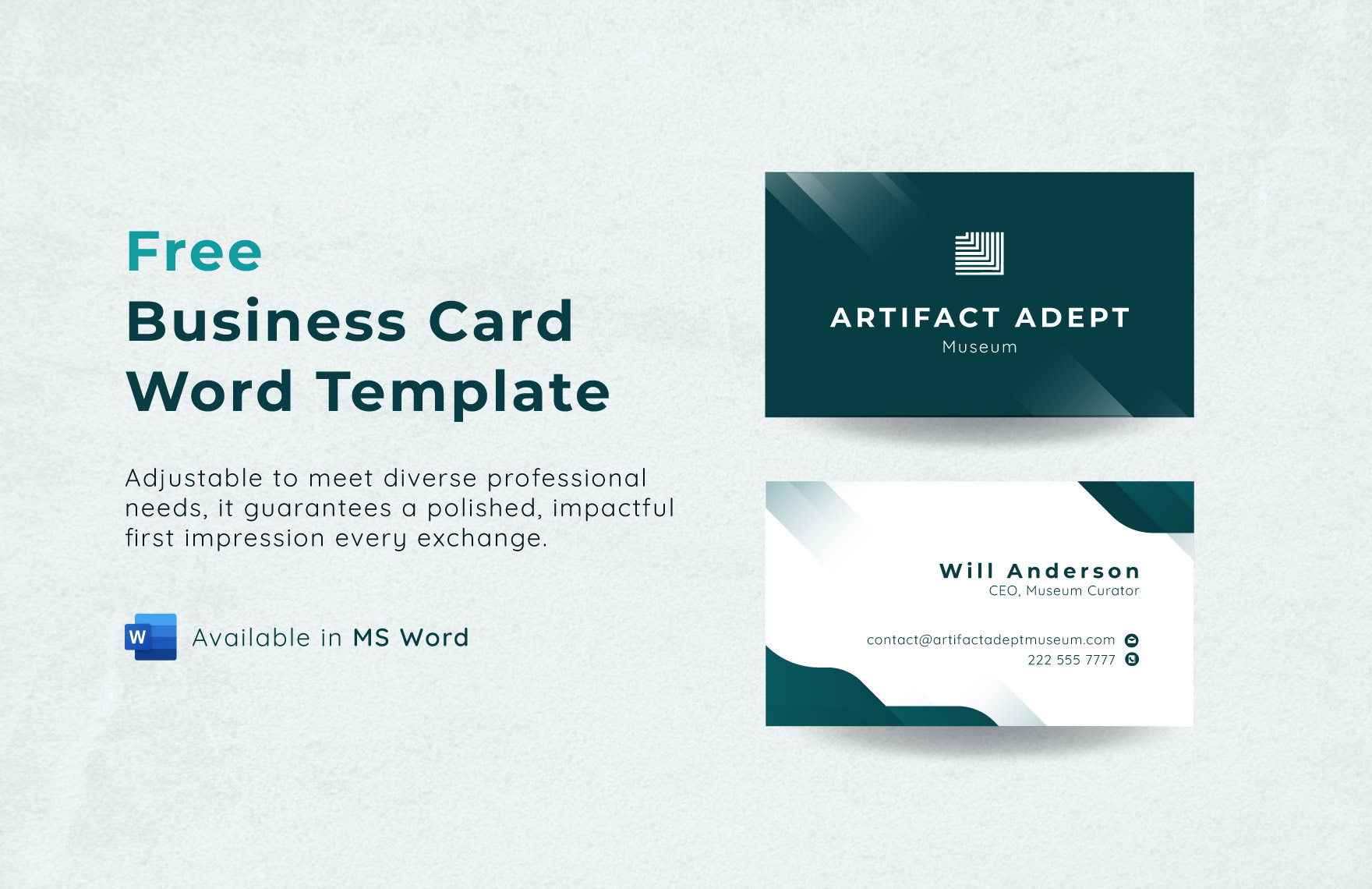
Business Card Word Template In Word, PDF – Download | Template.net
www.template.net
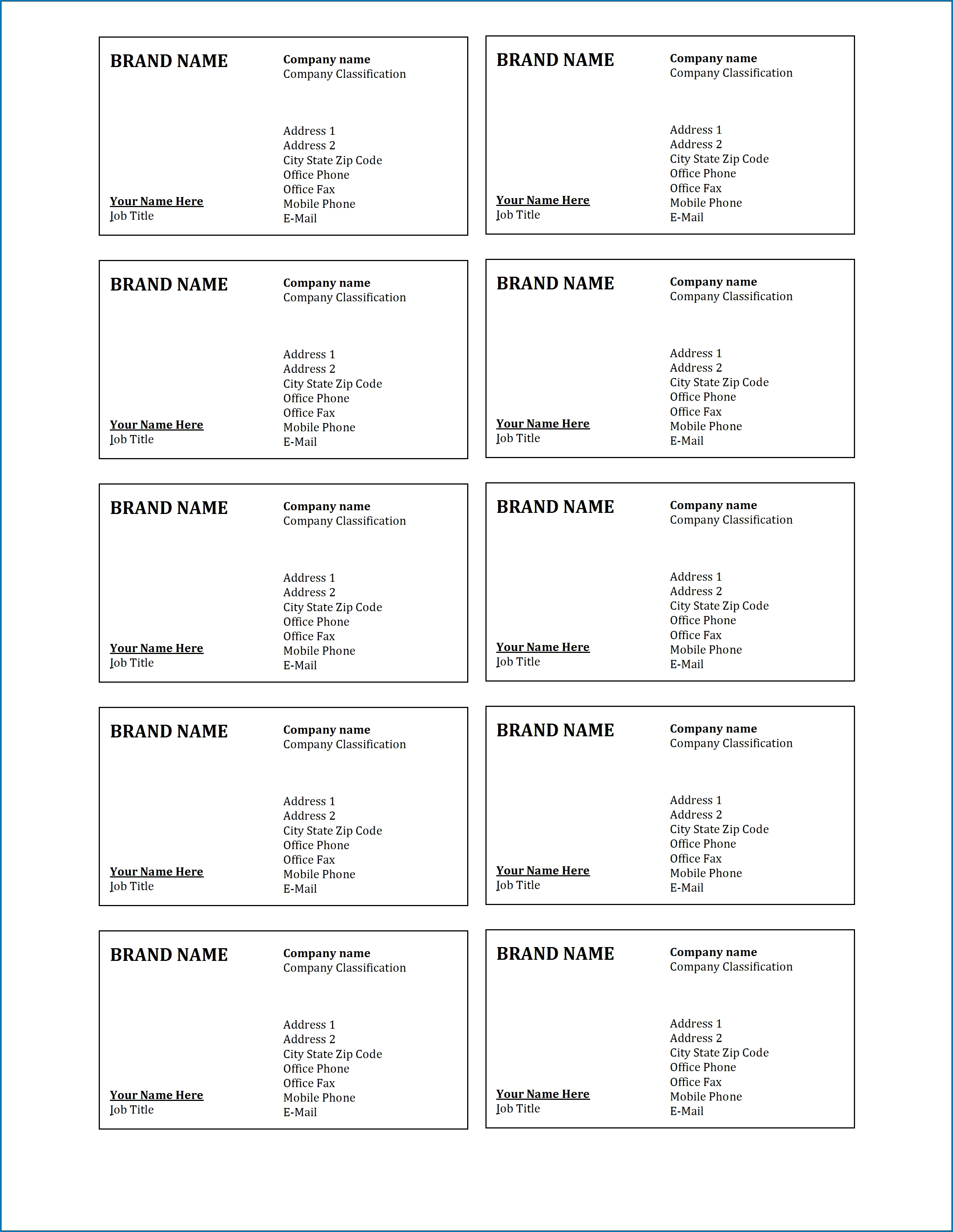
√ Free Printable Business Card Template Word
www.templateral.com
019 Blank Business Card Template Microsoft Word Free In Blank Business
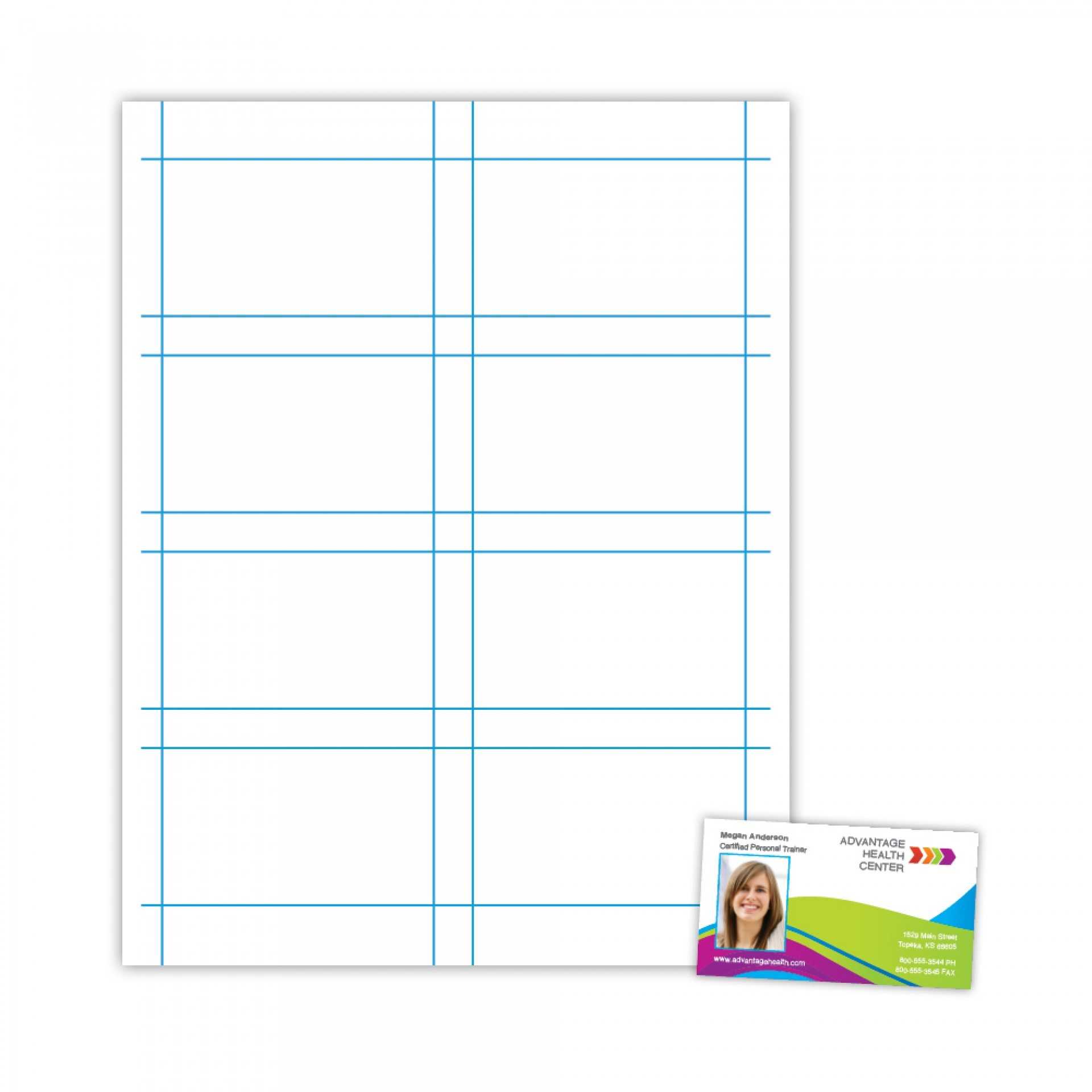
sample.gelorailmu.com
word 23 business card template – parahyena. Microsoft word free business card template. business card template free download word