How To Change Template In Powerpoint
Changing PowerPoint Templates: A Comprehensive Guide
PowerPoint templates are a fantastic way to quickly create visually appealing and consistent presentations. They provide a pre-designed framework, including color schemes, fonts, and layouts, saving you valuable time and effort. However, sometimes you need to change the template of an existing presentation, either to refresh its look or adapt it to a new brand identity. This guide will provide a comprehensive overview of how to change templates in PowerPoint, ensuring you can easily customize your presentations to meet your needs.
Whether you’re starting a new presentation or working with an existing one, understanding how to apply and modify templates is a crucial skill. We will cover several methods, from using the built-in design tab to importing custom templates, empowering you to create professional and engaging presentations.
How to Change PowerPoint Templates
There are several ways to change the template in PowerPoint, depending on your needs and the version of PowerPoint you are using. We’ll explore the most common and effective methods.
Method 1: Using the Design Tab (New Presentations)
This is the simplest method for applying a template when you’re starting a new presentation.
- Open PowerPoint: Launch the PowerPoint application on your computer.
- Click on ‘New’: On the Start screen (or in the File menu), click on “New.”
- Browse Available Templates: You’ll see a gallery of pre-designed templates. You can browse through the categories (e.g., Business, Education, Infographics) or use the search bar to find a specific template.
- Select a Template: Click on the template you want to use. A preview will appear.
- Click ‘Create’: Click the “Create” button. A new presentation will open with the selected template applied.
Method 2: Using the Design Tab (Existing Presentations)
This method allows you to change the template of an already created presentation.
- Open Your Presentation: Open the PowerPoint presentation you want to modify.
- Go to the ‘Design’ Tab: Click on the “Design” tab in the PowerPoint ribbon.
- Browse Themes: In the “Themes” group, you’ll see a gallery of available themes (which are essentially templates). Hover over a theme to preview it on your slides.
- Apply a Theme: Click on the theme you want to apply. The entire presentation will update to reflect the new theme’s design.
- Explore Variants: Within the “Variants” group on the right-hand side of the Design tab, you’ll find different color schemes, fonts, and effects that you can apply to the selected theme. This allows for further customization.
Method 3: Importing and Applying a Custom Template (.potx)
If you have a custom template file (.potx), you can import and apply it to your presentation. This is useful for using branded templates or templates created by others.
- Open Your Presentation: Open the PowerPoint presentation you want to modify.
- Go to the ‘Design’ Tab: Click on the “Design” tab in the PowerPoint ribbon.
- Click the “More” Arrow: In the “Themes” group, click the down arrow to expand the theme gallery.
- Select “Browse for Themes…”: Choose the “Browse for Themes…” option at the bottom of the dropdown menu.
- Locate Your Template: A file dialog will open. Navigate to the location of your .potx template file and select it.
- Click ‘Apply’: Click the “Apply” button. The custom template will be applied to your presentation.
Method 4: Using Slide Master to Customize Themes
While technically not changing the template directly, the Slide Master allows you to deeply customize the underlying theme. This is more advanced but gives you granular control over the appearance of your slides.
- Open Your Presentation: Open the PowerPoint presentation you want to modify.
- Go to the ‘View’ Tab: Click on the “View” tab in the PowerPoint ribbon.
- Click ‘Slide Master’: In the “Master Views” group, click the “Slide Master” button. This opens the Slide Master view.
- Customize the Master Slides: The Slide Master view displays a hierarchy of slides. The top slide controls the overall theme. You can change fonts, colors, backgrounds, and layouts here. Modifications to the master slides will cascade down to the individual slide layouts.
- Close Master View: When you’re finished making changes, click “Close Master View” on the “Slide Master” tab.
Modifying the Slide Master can significantly alter the look and feel of your presentation without changing the underlying template file.
Tips for Working with PowerPoint Templates
- Consistency is Key: Choose a template that aligns with your brand and maintains consistency throughout your presentation.
- Customize Wisely: While templates provide a great starting point, don’t be afraid to customize them to fit your specific needs. Use the “Variants” group and the Slide Master to fine-tune the design.
- Font Choices: Pay attention to font choices. Ensure the fonts are legible and complement the overall design. Limit yourself to a maximum of two or three font families.
- Color Palette: Use a consistent color palette throughout your presentation. Consider using your brand colors or a professionally designed color scheme.
- Image Quality: Use high-quality images that are relevant to your content. Avoid pixelated or blurry images.
- Test Your Presentation: Before presenting, always test your presentation on the intended display device to ensure everything looks as expected.
By understanding how to change and customize PowerPoint templates, you can create visually stunning and effective presentations that capture your audience’s attention. Experiment with different methods and techniques to find what works best for you and your content.
If you are searching about Change Management Powerpoint Template Slidesalad Chan – vrogue.co you’ve visit to the right page. We have 15 Images about Change Management Powerpoint Template Slidesalad Chan – vrogue.co like Change Template In Powerpoint – Toptemplate.my.id, Change Infographic – Elegant ¢Ë†å¡ How To Change Powerpoint Template and also Sydney PowerPoint Morph Animation Template. Read more:
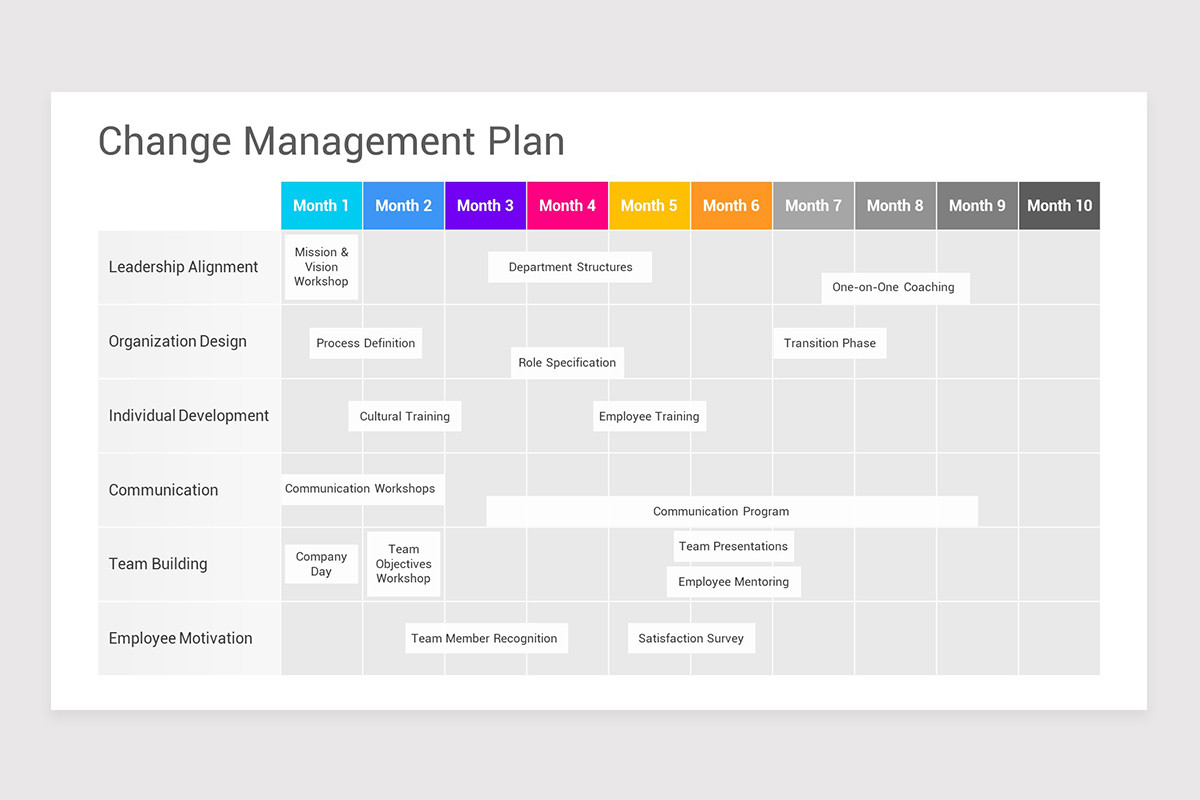
Change Management Powerpoint Template Slidesalad Chan – Vrogue.co
www.vrogue.co
Vietnam Free Powerpoint Morph Animation Template

slidenest.com
Change Infographic – ˆš ¢Ë†å¡ Change Template Powerpoint Change
vancecountyfair.com
Sydney PowerPoint Morph Animation Template

slidenest.com
Climate Change Powerpoint Template

old.sermitsiaq.ag
Vietnam Free Powerpoint Morph Animation Template

slidenest.com
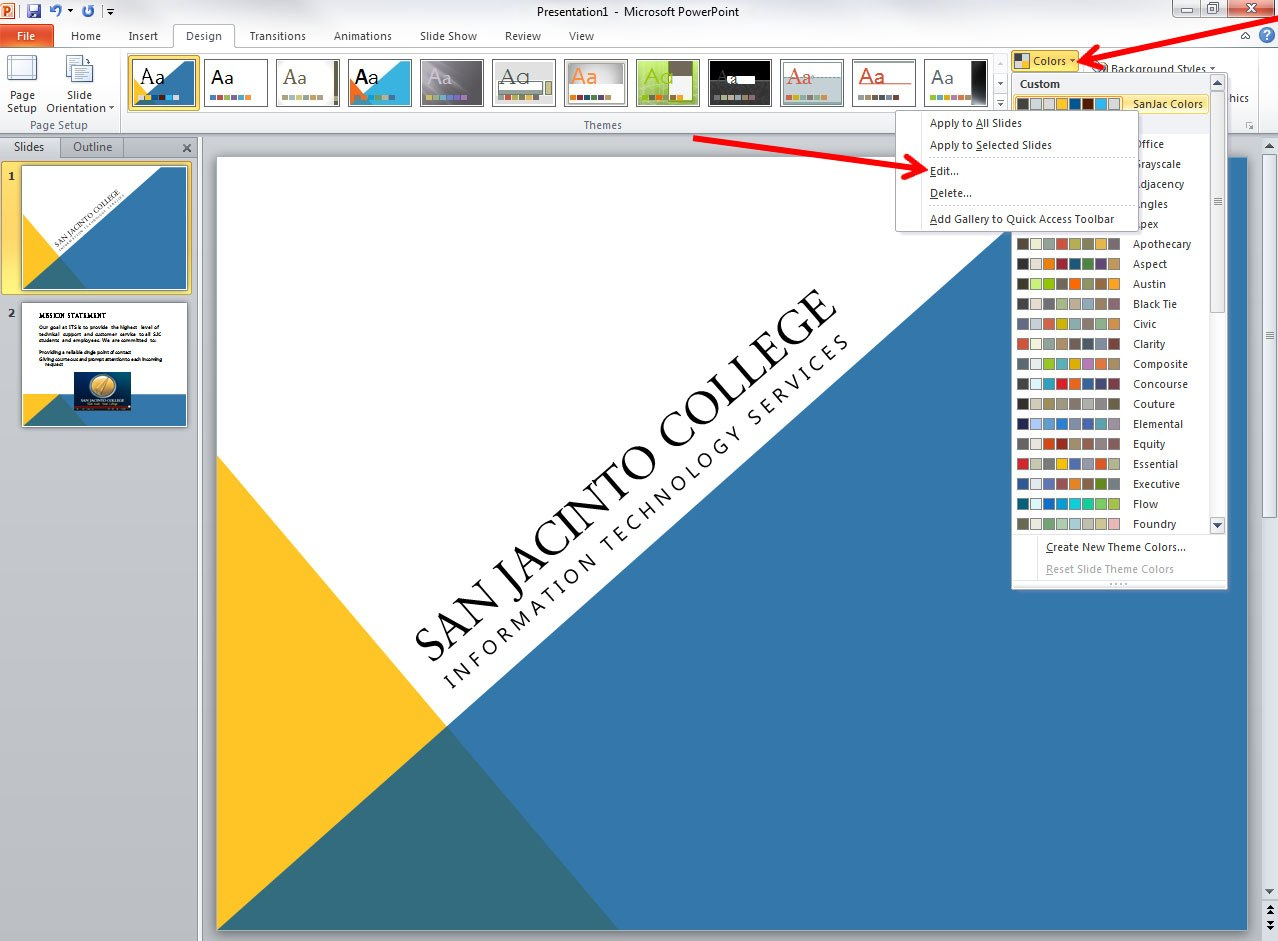
Applying And Modifying Themes In Powerpoint Information With Change
vancecountyfair.com
Brazil Morph Animation Powerpoint Template

slidenest.com
Ireland Morph Animation Powerpoint Template

slidenest.com
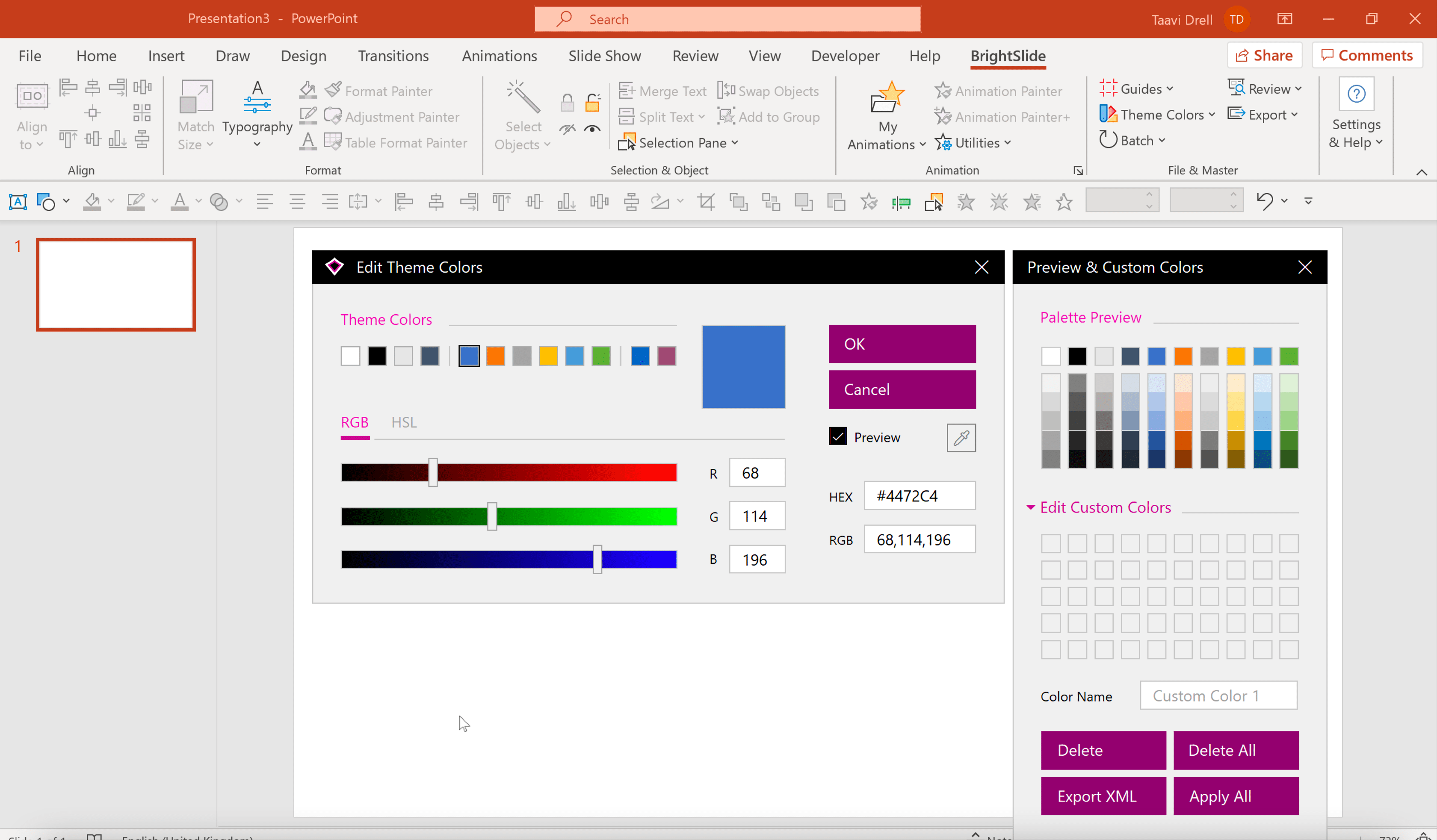
How To Change Template In Powerpoint – Toptemplate.my.id
www.toptemplate.my.id
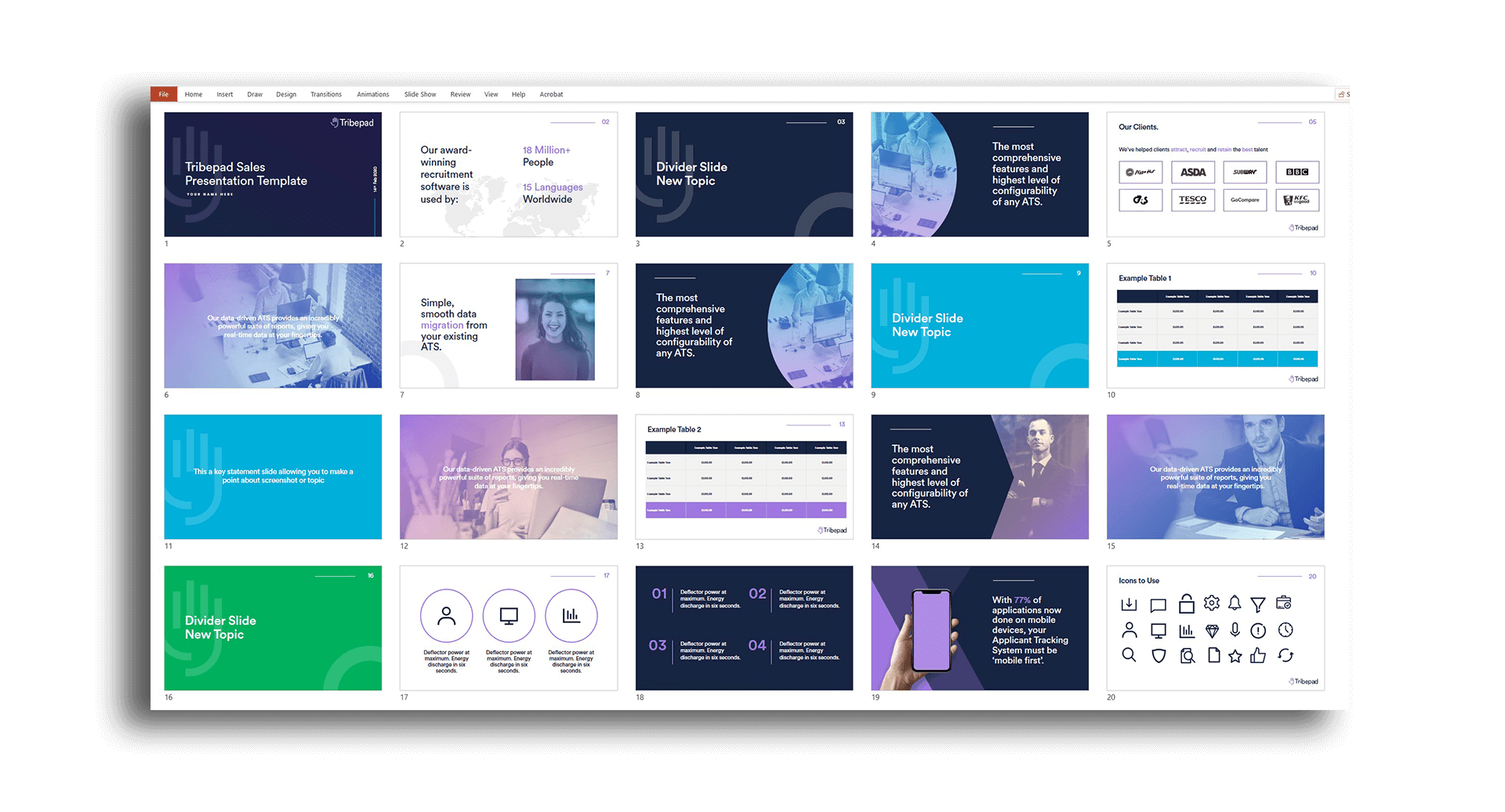
Photo Powerpoint Template
printabletemplate.conaresvirtual.edu.sv
Tokyo Morph Animation Powerpoint Template

slidenest.com
Change Template In Powerpoint – Toptemplate.my.id

www.toptemplate.my.id
Change Infographic – Elegant ¢Ë†å¡ How To Change Powerpoint Template

vancecountyfair.com
Sydney PowerPoint Morph Animation Template

slidenest.com
Change template in powerpoint. Vietnam free powerpoint morph animation template. Brazil morph animation powerpoint template